Claude Artifacts as Desktop Apps: One Prompt, One Mac App
 8 min read
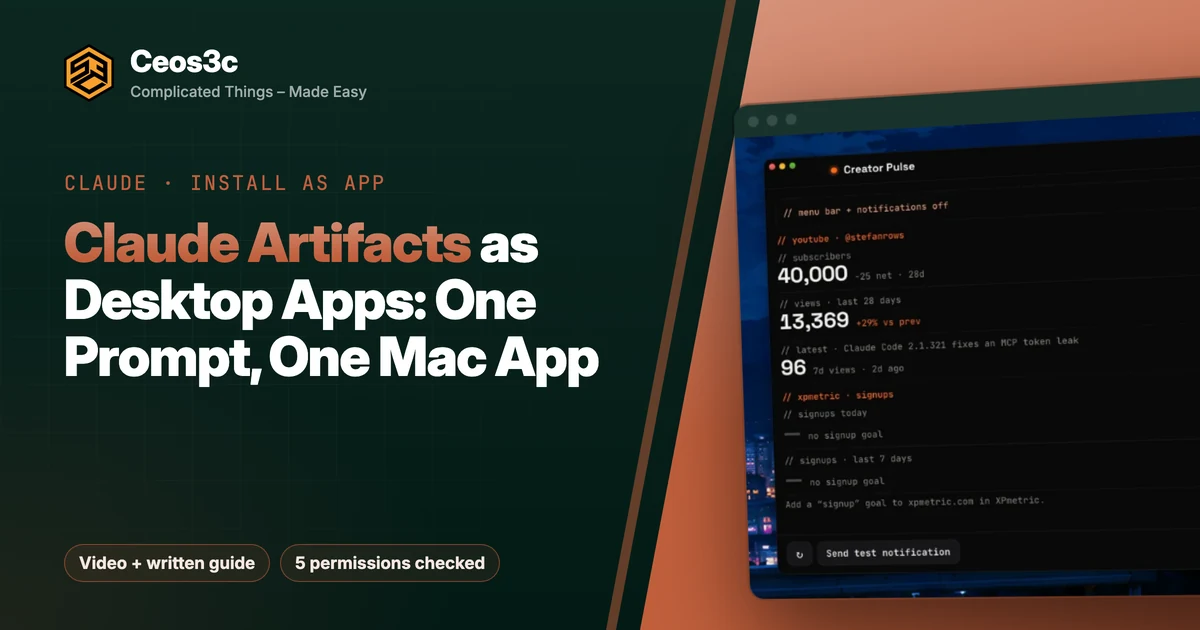
Anthropic’s launch post for Install as app got about 6.5 million views in a single day, and the reply I kept seeing under it was “isn’t this just a web app with an icon?”. So I tested it with a real tool for my own channel instead of a demo.
In this post, I show you how I turned Claude artifacts into a desktop app with one prompt, what the first run with real data looked like, how the install works, and the five permissions an installed app can ask for.
Disclosure: XPmetric, the analytics tool the app pulls its numbers from, is my own product.
Table of Contents
Quick Start
- Update the Claude Desktop app on Mac or Windows (the help article names version 6.28899.0).
- Open a new chat and ask Claude for an interactive artifact. Say in the prompt which permissions the app may ask for.
- When the artifact runs, allow the connectors it asks for.
- Open the artifact’s title menu and click Install as app, then Install.
- Open the app from the Claude Apps folder, Spotlight or a desktop shortcut, and answer each permission prompt one by one.
- To remove it, go to File > Apps and uninstall. The artifact itself stays in Claude.
What Install as app does to Claude artifacts
An artifact is a small app that Claude builds inside the chat. With Install as app (beta), you can install that artifact on your computer like a normal program.
It gets its own icon and its own window, and it can use Claude and your connectors. When you change the artifact, the installed app updates with it.
According to Anthropic’s overview, it is on every plan, free included. On Team plans it is on by default, on Enterprise it is off by default, and an owner switches it under Organization settings > Artifacts (admin guide).
Here is what you need:
- The Claude Desktop app on Mac or Windows, version 6.28899.0 or newer (help article).
- A Claude account. You have to be online and signed in to open an installed app.
A few things can’t be installed yet: Claude Docs, Slides and Sheets. There is also no Linux, web or mobile version.
Is it just a web app with an icon?
That’s a fair question. In a way, it is your artifact in its own window.
The difference is what it can reach: Claude, your connectors, and native things like the menu bar and notifications.
The flip side is that anyone who runs it needs a Claude account and the desktop app. So it’s not something you can hand to a friend who doesn’t use Claude.
The build: one prompt
I started in the Artifacts view of Claude Desktop, opened a new chat and pasted one prompt. The model picker showed Opus 5.5 on High.
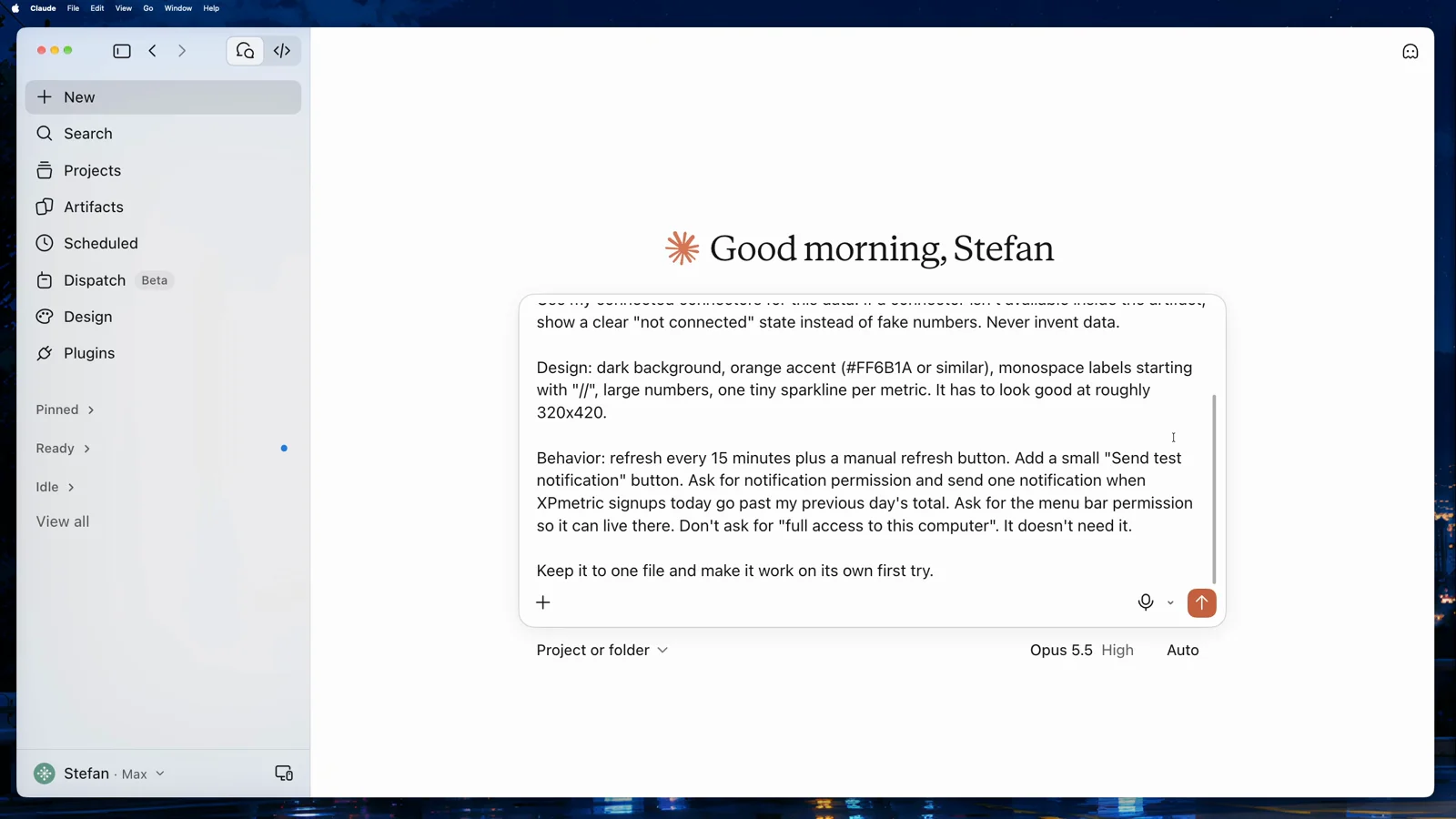
I asked for a small menu bar app called Creator Pulse. It shows my YouTube subscribers, my views from the last 28 days, my latest video, and new signups from XPmetric.
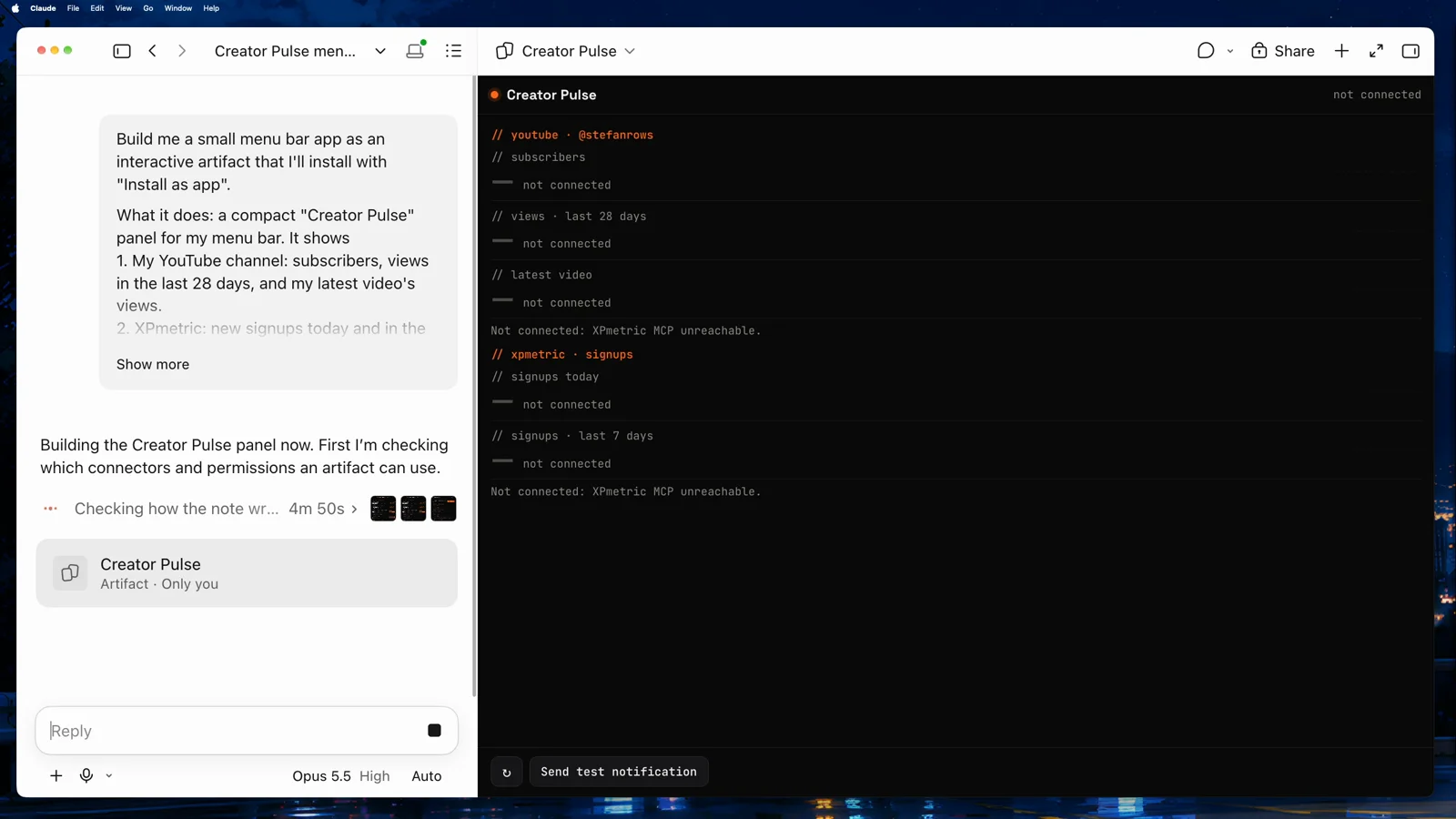
Two lines in that prompt matter for the rest of this post. The first one says to show “not connected” instead of fake numbers if a connector isn’t available. The second one says not to ask for full access to my computer, because the app doesn’t need it.
Then Claude worked on it for almost five minutes, and I didn’t touch anything. Its own counter stopped at 4m 48s.
Prompts
The whole build, one prompt (shown in the video at 01:45):
Build me a small menu bar app as an interactive artifact that I'll install with "Install as app".

What it does: a compact "Creator Pulse" panel for my menu bar. It shows
1. My YouTube channel: subscribers, views in the last 28 days, and my latest video's views.
2. XPmetric: new signups today and in the last 7 days.
Use my connected connectors for this data. If a connector isn't available inside the artifact, show a clear "not connected" state instead of fake numbers. Never invent data.

Design: dark background, orange accent (#FF6B1A or similar), monospace labels starting with "//", large numbers, one tiny sparkline per metric. It has to look good at roughly 320x420.

Behavior: refresh every 15 minutes plus a manual refresh button. Add a small "Send test notification" button. Ask for notification permission and send one notification when XPmetric signups today go past my previous day's total. Ask for the menu bar permission so it can live there. Don't ask for "full access to this computer". It doesn't need it.

Keep it to one file and make it work on its own first try.
Make sure to name the permissions your app needs in the prompt. That one line decides what the installed app asks you for later.
First run with real numbers
When the artifact opened, the first thing I saw was “not connected”, which is exactly what I asked for.
Then Claude asked whether this artifact may use my XPmetric connector. The dialog says the connector runs on this device through the Claude app.
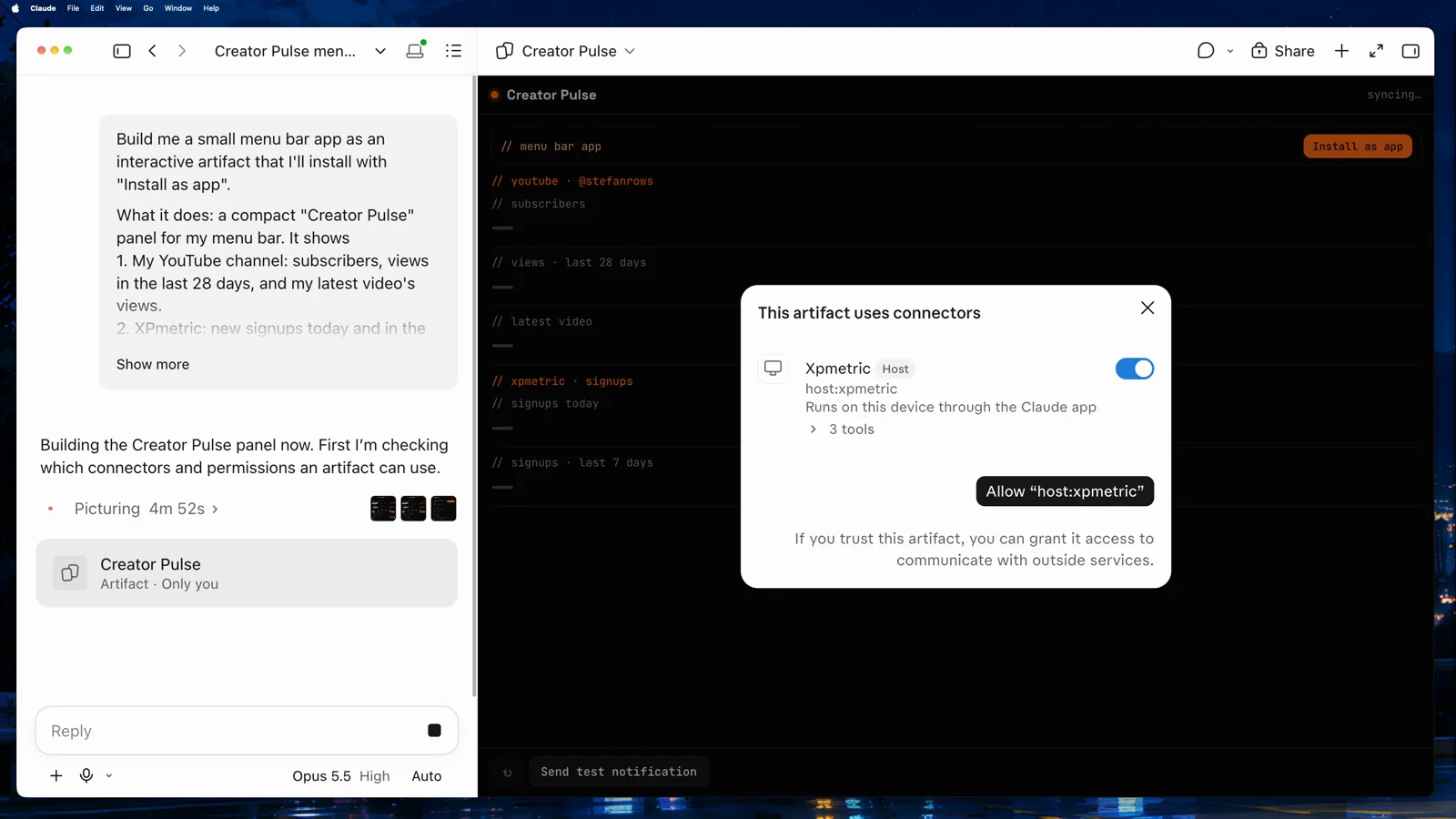
I clicked Allow “host:xpmetric”, and the real numbers came in.
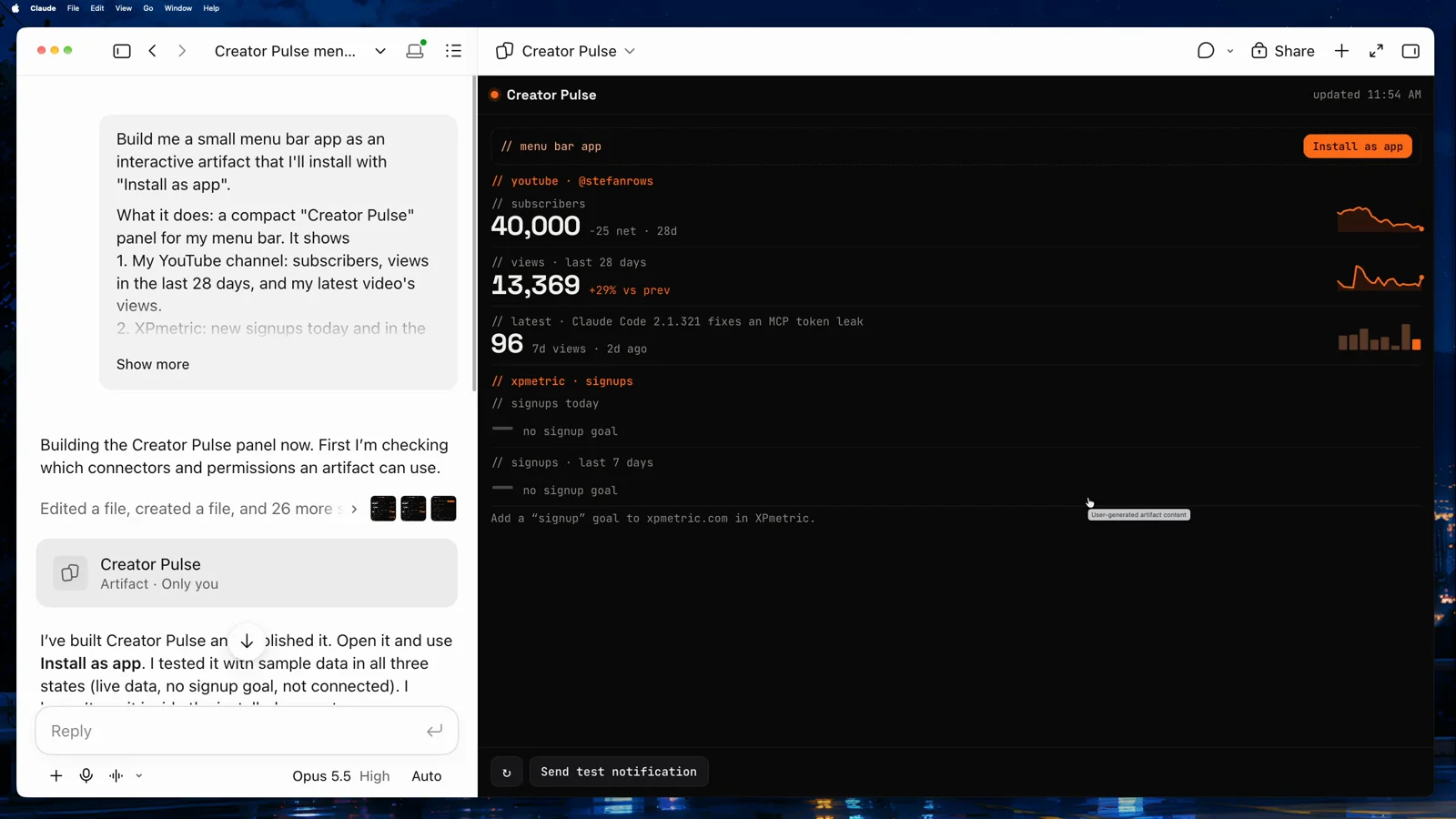
As you can see, there is my channel with 40,000 subscribers (-25 net over 28 days), 13,369 views in the last 28 days with a little sparkline, and my latest video with 96 views.
Claude pointed out two honest things about these numbers by itself. YouTube’s reports run about three days behind, and the subscriber count is YouTube’s public figure, which is rounded.
The signup section just says “no signup goal”, because I haven’t set one up in XPmetric yet. There’s nothing to count, so the app doesn’t make up a number to fill the space.
I actually like that. A dashboard that invents numbers is worse than no dashboard at all.
Installing it
Installing is one menu item. Open the artifact’s title menu and click Install as app.
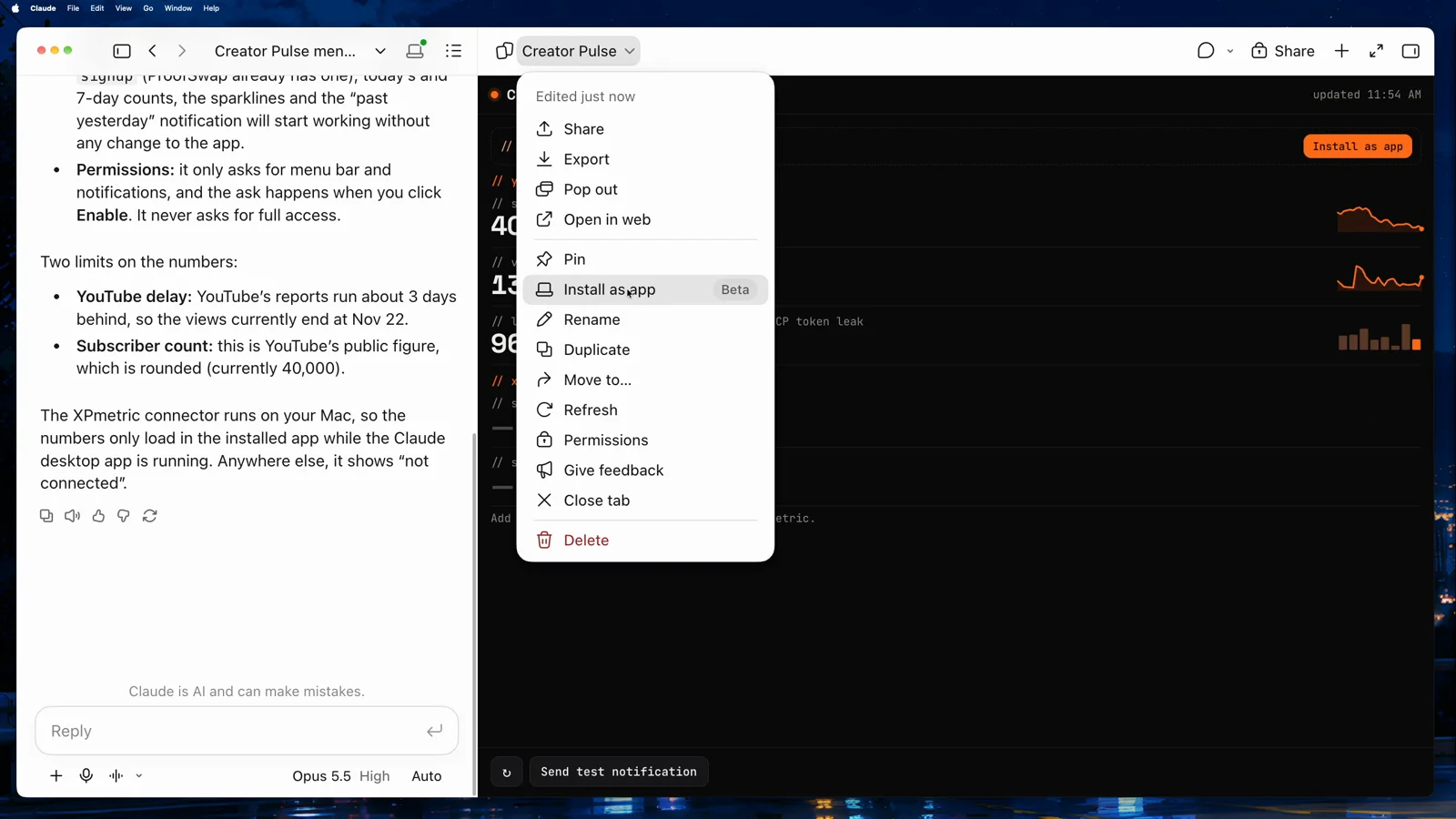
Claude asks you to confirm, and that dialog already tells you the important part: the app gets its own windows and icons, and it can’t reach your files or run programs unless you allow it.
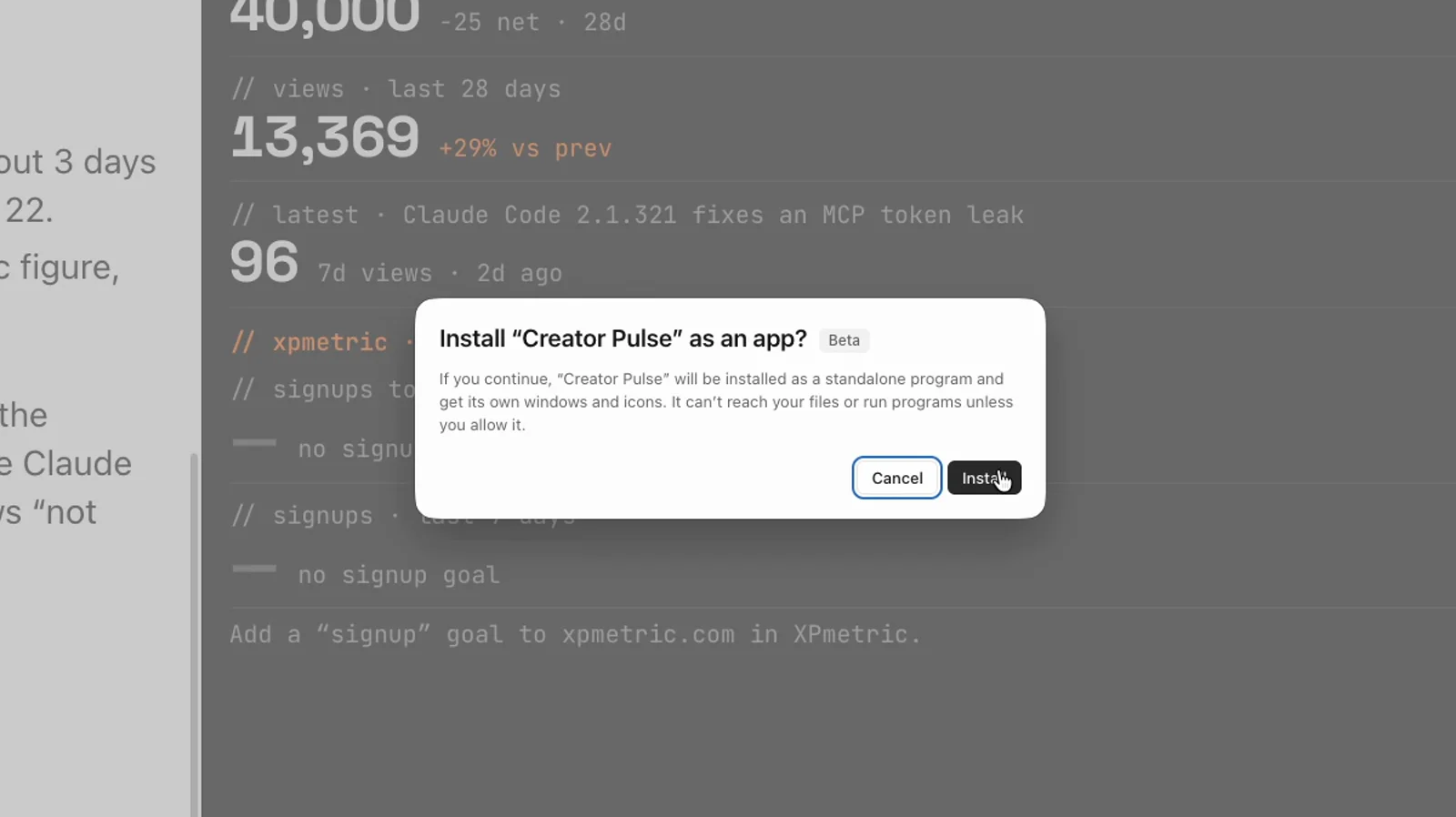
Click Install. The app now sits in an applications folder called Claude Apps, and it shows up in Spotlight. I put a shortcut on my desktop.
First launch and the menu bar
I double-click it, and it opens like any other app, with no browser and no chat around it.
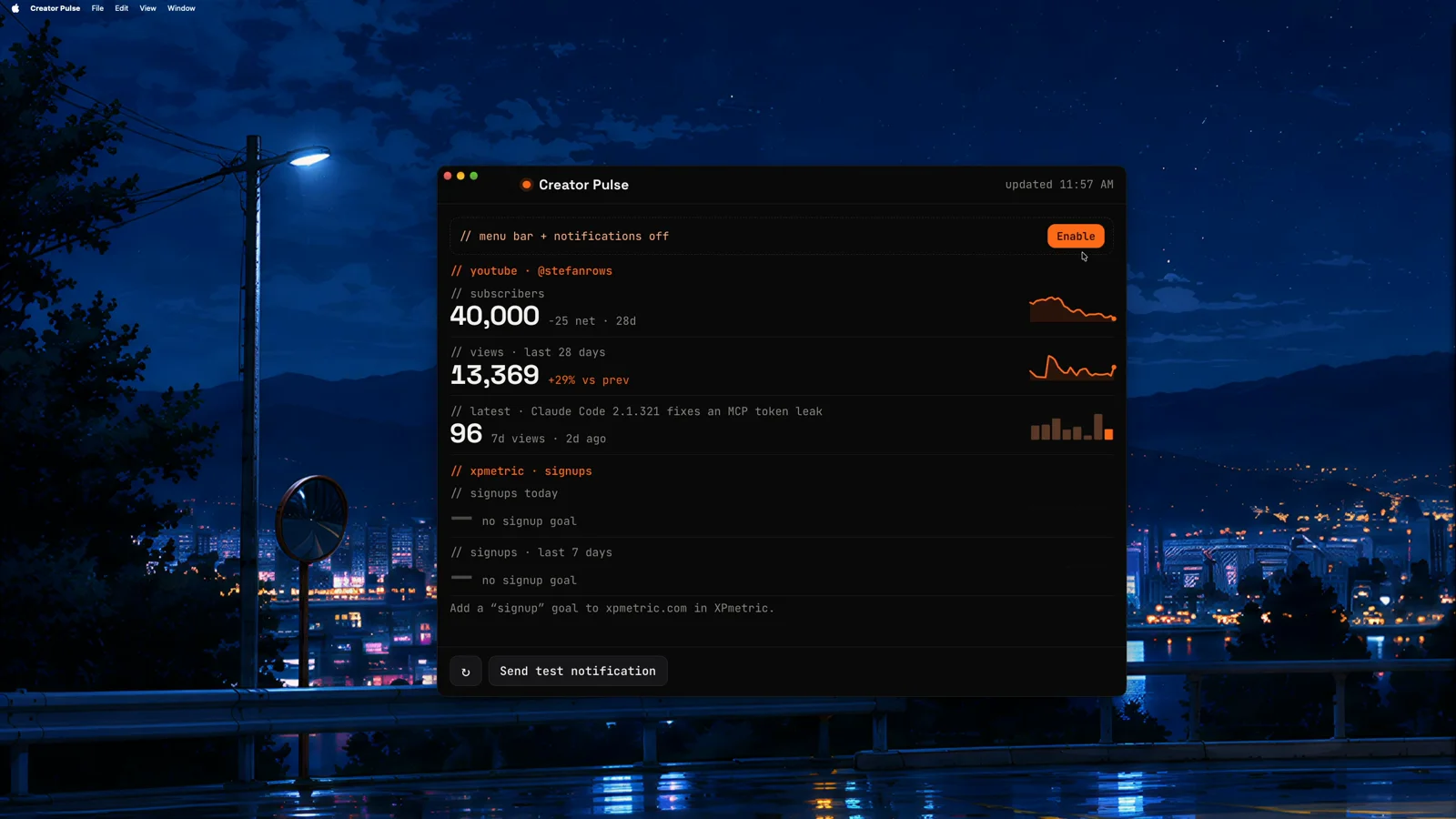
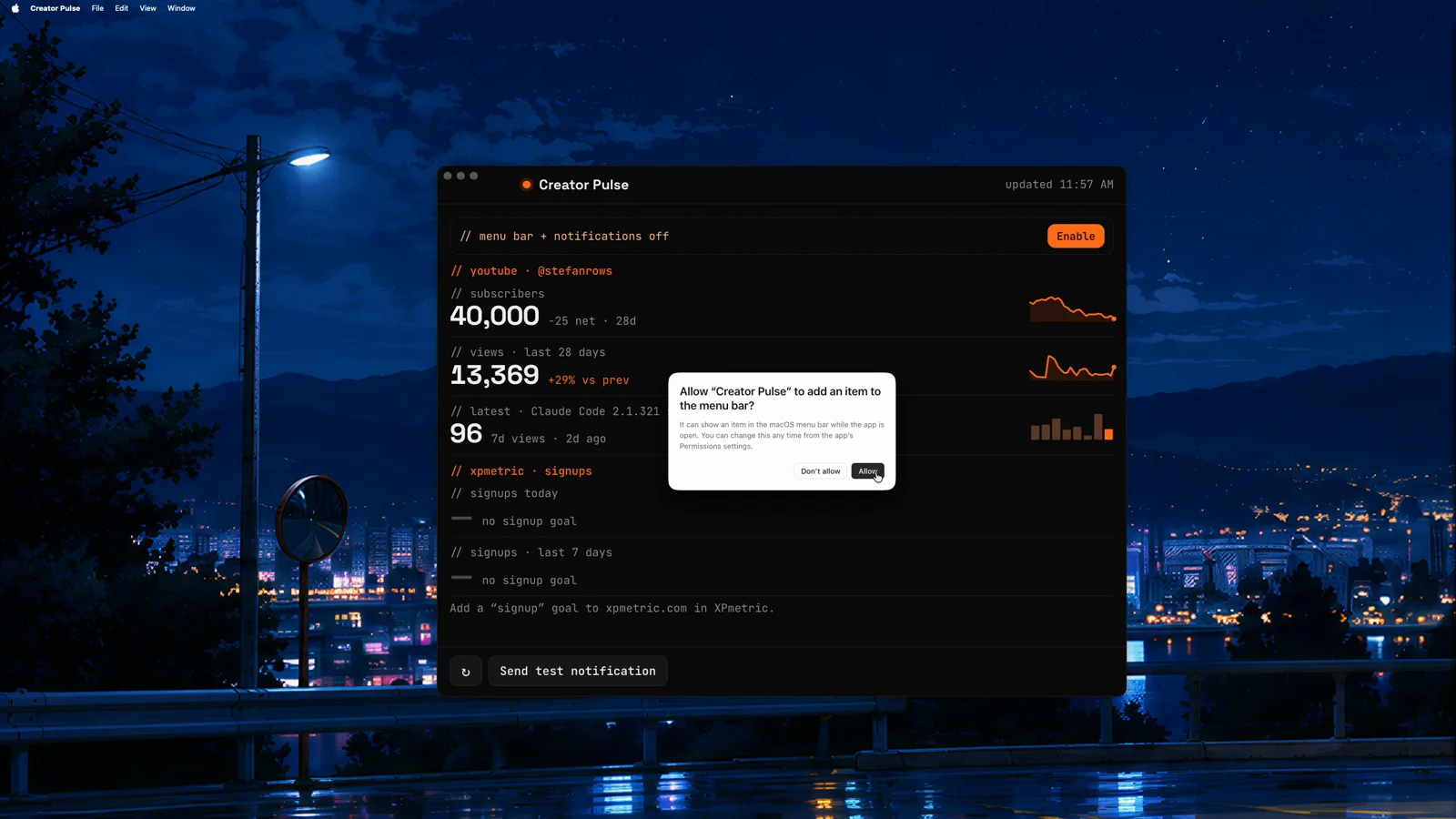
It starts with the menu bar and notifications switched off. When I click Enable, macOS asks me two things, one after the other.
First, it wants to add an item to the menu bar.
Then it wants to show notifications.
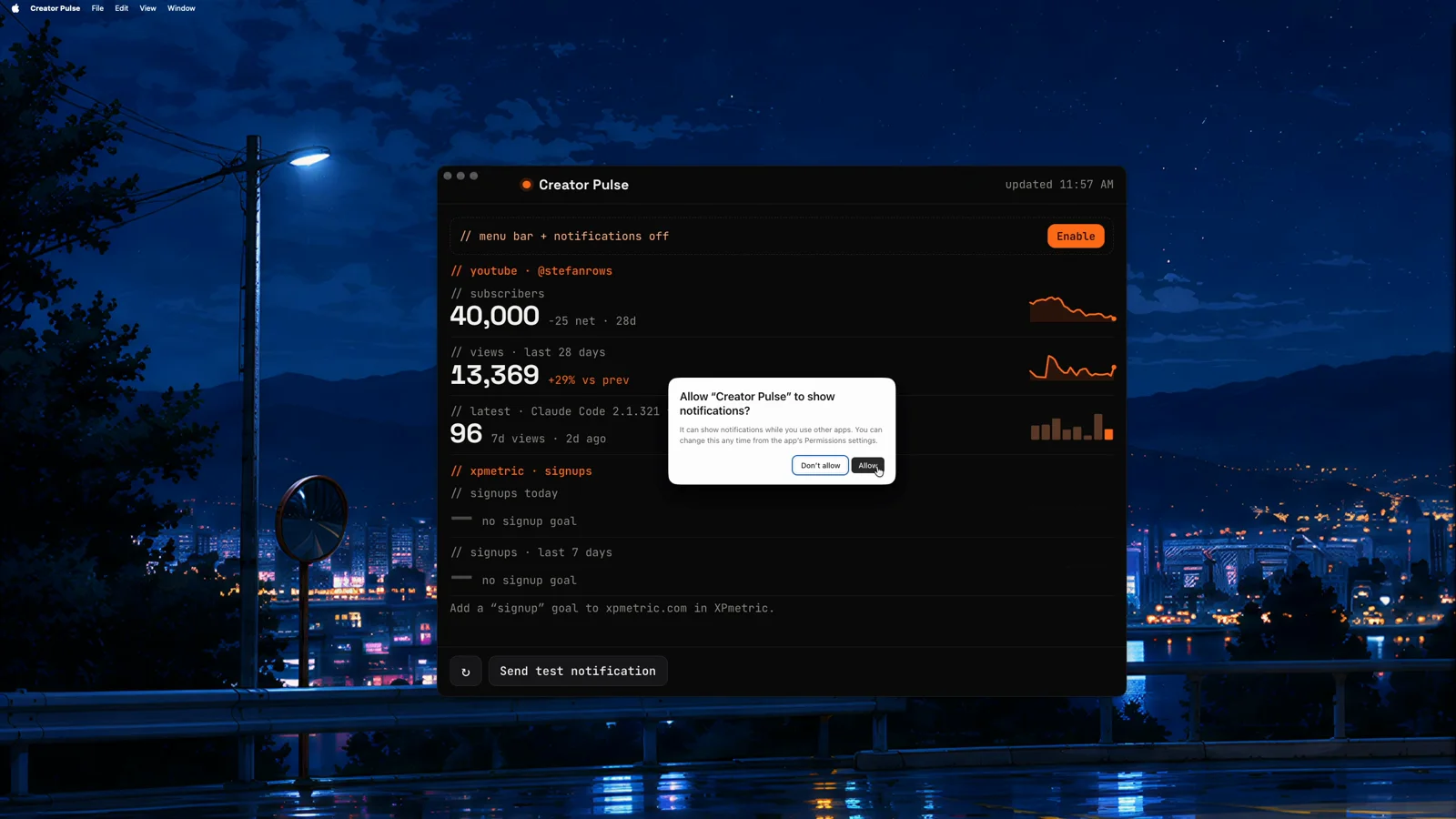
Those are the only two things this app ever asks for. After I allowed both, Creator Pulse sits in my menu bar, it can ping me with a test notification, and it keeps running up there after I close the window until I quit it.
In my app, the permission prompts came at first launch when I clicked Enable, not during the install.
The five permissions
Here is the full list an installed app can ask for. It always asks one by one, so you can say yes or no to each of them:
- Notifications
- Keyboard shortcuts
- Floating over your other windows
- A menu bar or tray icon
- Full access to your computer
My app uses two of those five, simply because I told it in the prompt exactly what it needs.
The first four are pretty harmless. The last one is a completely different thing.
Full access: think twice
Full access means the app can run programs and read, change or delete files on your computer without asking you each time.
Anthropic is clear about this in its own help article: an app with full access can run any program, so only allow it if you trust everyone who wrote the app.
Anthropic also doesn’t review these apps before you install them. There is no app store check here, so it’s on you.
The good news is that permissions reset with every new version of the app, even when you edit it yourself. So an update has to ask you again.
The one exception is code the app loads from another website, which can change without a new prompt.
On Free, Pro and Max, a shared app from somebody else generally can’t even ask for full access, which I think is a smart default.
My own rule is simple: full access only for apps I built myself, and even then, only when the app really needs it.
Limits to know
A few things to know before you install ten of these:
- You have to be online and signed in to the Claude Desktop app to open them.
- Every request the app makes to Claude counts toward your plan’s usage, and so does building it.
- To get rid of an app, go to File > Apps and hit uninstall. The artifact itself stays in Claude.
Gotchas
- A local connector needs Claude Desktop running. My XPmetric connector runs on my Mac, so the numbers only load in the installed app while the Claude Desktop app is running. Otherwise Creator Pulse says “not connected”.
- YouTube numbers lag. YouTube’s reports run about three days behind, so on 2026-11-25 my views ended at Nov 22.
- The subscriber count is rounded. It is YouTube’s public figure, which is rounded.
- No goal, no number. The XPmetric signup rows stay empty until a
signupgoal exists in XPmetric. The app says so instead of showing zero.
Verdict
Is it worth it? For small personal tools like this one, absolutely.
I built a dashboard for my own channel in about five minutes, and it lives in my menu bar.
The one real downside is that the Claude Desktop app has to be running, otherwise my numbers just say “not connected”.
The part I’d really take away is the permissions. Tell Claude in your prompt what the app may ask for, give it the smallest set it needs, and keep full access for apps you really trust.
Related posts
- Claude Code Desktop for Beginners: Your First App on GitHub
- Claude Code settings.local.json Secrets: Audit Your Repos, Rotate, and Stop the Leak
- AI Coding Workflow: Orchestrating Agents With Roadmaps
- Official docs: Install an artifact as an app
Your turn
You now know how to go from one Claude chat to an installed app, and which permission to keep switched off.
Which little tool would you want living on your desktop? Let me know on X @StefanRows, and watch the full video above if you want to see the build and the install in motion.
More posts
All AI Workflows