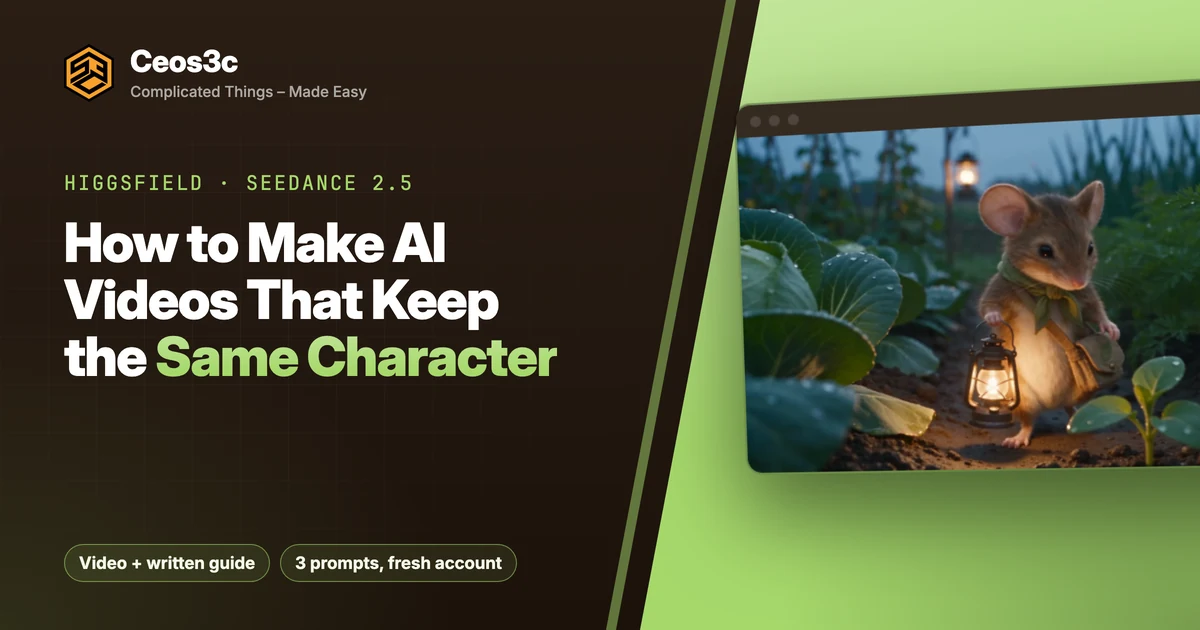
How to Make AI Videos That Keep the Same Character
 10 min read
Disclosure: this post and the video are sponsored by Higgsfield. Moss is the character in my own planning app, PlanGentle. The verdict at the end is mine.
Moss lives in my planning app PlanGentle. Until this week he was exactly one picture on my landing page, standing next to his little tree, and he had never moved once. I need a lot more of him for the app, and I’m not going to draw every clip by hand. So he gets AI videos.
The hard part of AI video isn’t making a clip. It’s making the same character show up in the next clip, and the one after that. If Moss looks different every time, I can’t use any of it. So here is how to make AI videos that keep the same character: one picture, a character sheet, then video. Fresh Higgsfield account, three prompts. I’m a developer, not an animator, so this is the beginner path.
Table of Contents
- Quick Start
- Which AI models should you use?
- Setup: which Higgsfield plan you need
- How do you make a character in GPT Image?
- Why make a character sheet first?
- How do you animate it with Seedance 2.5?
- What should you check in the result?
- Can you change the scene and keep him?
- How do you put him in a trending video?
- Prompts for AI videos with the same character
- Character, GPT Image 2.6 Flare, 3:4 (05:07)
- Character sheet, GPT Image 2.6 Sunburst, 16:9 (06:57)
- Video, Seedance 2.5, 15 s, 16:9 (08:02)
- Scene tweak, dusk and light rain, Seedance 2.5 (10:12)
- Genjutsu, Recreate with your character (12:01)
- Gotchas
- Is it good enough for my app?
- Your turn
Quick Start
- Sign up on Higgsfield and pick Plus (Seedance 2.5 isn’t on Free or Starter).
- Image tab: GPT Image 2.6 Flare, aspect ratio 3:4, paste the character prompt, generate.
- Attach that picture, switch to GPT Image 2.6 Sunburst, aspect ratio 16:9, paste the character sheet prompt. Download the sheet.
- Video tab: Seedance 2.5, add the sheet as a reference, paste the video prompt and link
@Image1to the sheet. 15 s, 16:9, then pick the quality. - Check face, outfit and movement. Change one thing in the prompt (time of day, weather) and generate again. Same character.
- Bonus: Genjutsu, Community trending, Recreate, swap in your character sheet.
All five prompts are in the Prompts section below.
Which AI models should you use?
There are two kinds of models on the platform. Image models make pictures. Video models make those pictures move.
On the image side:
- Nano Banana edits a photo you already have, for example the outfit or the background.
- GPT Image follows detailed instructions. Great for product shots and readable text.
- Soul Cinema makes cinematic, film-like pictures.
- Seedream is the all-rounder for people, places and detailed scenes.
On the video side:
- Wan fills in the motion between a first frame and a last frame.
- Kling handles action and character movement.
- Seedance takes your character and your scene and makes the movement and the sound together, for up to 30 seconds.
For Moss I used GPT Image 2.6 for the pictures, because it follows prompts precisely and he has to look like Moss, not like some random mouse. For the video I used Seedance 2.5, because it gave me the most realistic result.
The reason I did this on Higgsfield: every model above lives in one place, on one plan, with one credit balance. I’m not paying for three subscriptions to animate one mouse.
Setup: which Higgsfield plan you need
Creating an account is quick. Sign in with one of the providers or with an email address, agree to the terms, set a password and enter the verification code. Then choose team, organization or personal use. I picked personal.
If you want to follow along, sign up through my link. As a new user you get up to 50% off your first purchase.
For this tutorial you need Plus, because Seedance 2.5 isn’t on Free or Starter:
- Plus: $49 a month, or $39 a month billed yearly, with 1,000 credits a month. That’s about 67 Seedance 2.5 videos, so under a dollar per video. You get every model, unlimited Seedream 5.0 Lite pictures at no credit cost, seven days of unlimited Nano Banana 2, plus Kling 3.0 on yearly billing. You can cancel any time.
- Ultra: 3,000 credits a month, about 200 Seedance 2.5 videos, for $129 a month or $99 billed yearly.
Longer or higher-quality videos cost more credits. Start with Plus, learn there, then upgrade or buy extra credits later.
A sale was running when I signed up, so the prices on my screen were lower than the regular ones above, and they showed in euros because I’m in Germany. Higgsfield gave me a plan for this account for the video, so I skipped the checkout.
How do you make a character in GPT Image?
The app has three tabs you need: Image, Video and Genjutsu.
- Go to Image and click Create image.
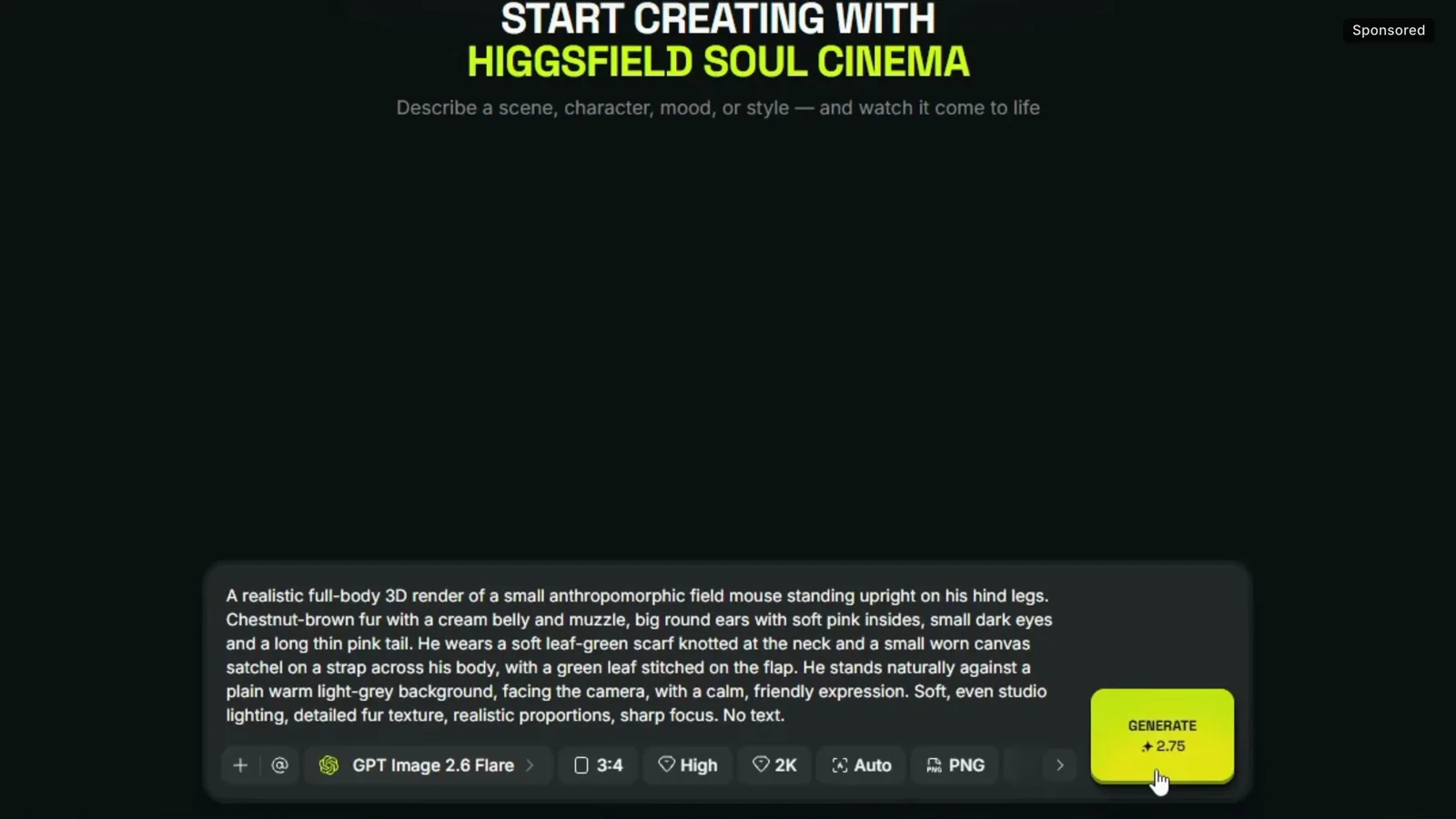
- Open the model selector and pick GPT Image 2.6 Flare.
- Paste the character prompt (below). It covers everything the model needs: who the character is, what he wears, the background, the light and the style.
- Click the aspect ratio button (it starts on Auto) and pick 3:4.
- The Generate button shows the cost before you click. For me it was 2.75 credits.
A few seconds later Moss was there, and close to what the prompt described:
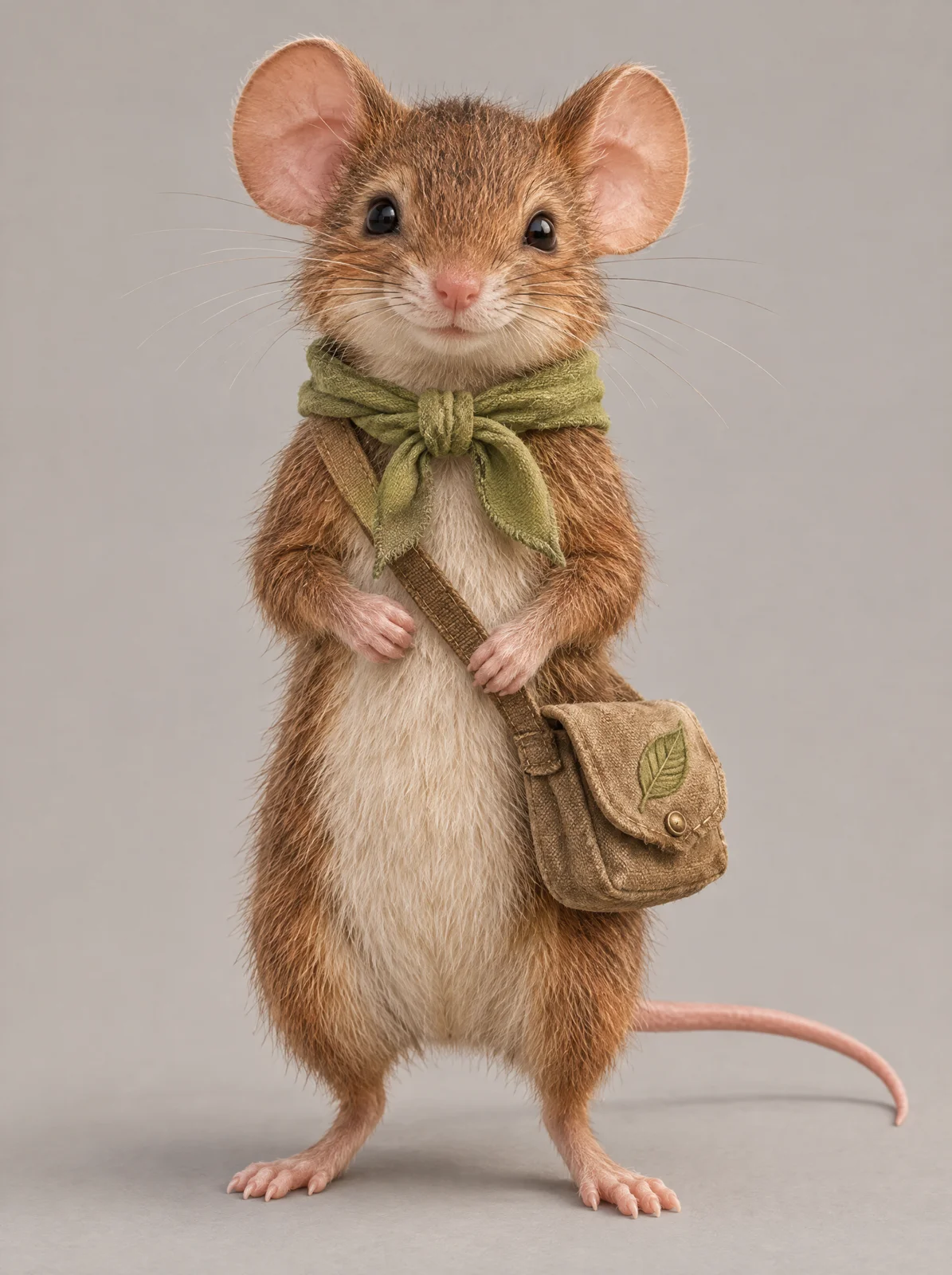
Not happy with the scarf color or position? Change that part of the prompt and generate again. Every run gives you a different result.
Already have a picture of your character? Upload it with the + button and skip straight to the character sheet. If writing prompts feels tricky, ask an AI chat assistant to draft one for you.
Why make a character sheet first?
A character sheet is the same character from several angles in one image. It’s the step that keeps him identical in every shot, so don’t skip it. For me it’s the part that decides whether any of this is usable in the app.
- Click the + button under the prompt. Upload an image, or click Generations and pick the character you just made.
- Switch the model to GPT Image 2.6 Sunburst.
- Set the aspect ratio to 16:9.
- Paste the character sheet prompt and click Generate. Again, the button shows the cost first.
Front, side and a close-up of the face:
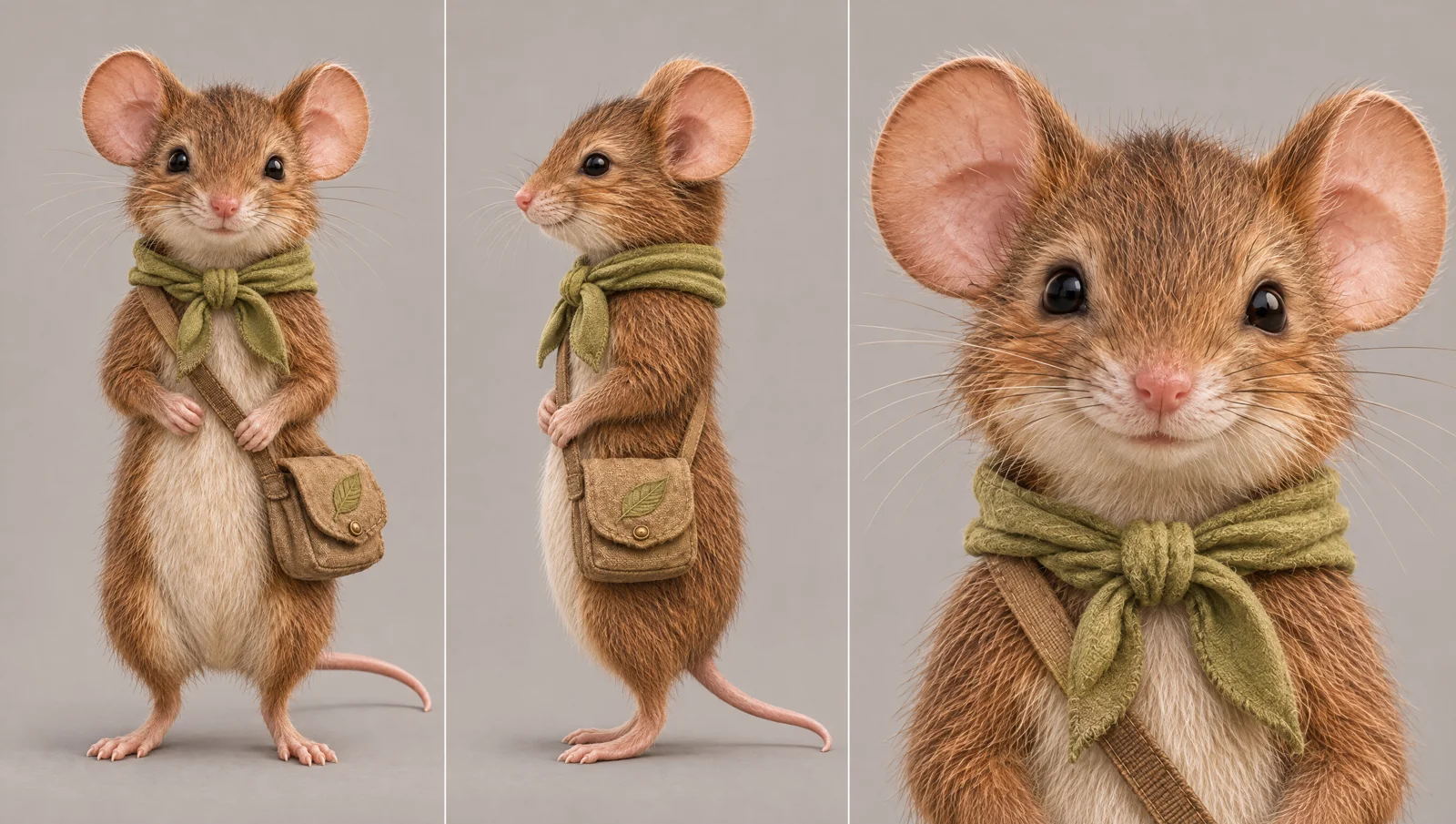
Download this image. You need it for every video from here on.
How do you animate it with Seedance 2.5?
- Go to Video and click Create video.
- Select Seedance 2.5.
- Click Add references and upload the character sheet, or pick it from your image generations.
- Paste the video prompt. Where it says
@Image1, click it and select the character sheet, so the model knows which picture the prompt is talking about. With several references, this is how you tell them apart.
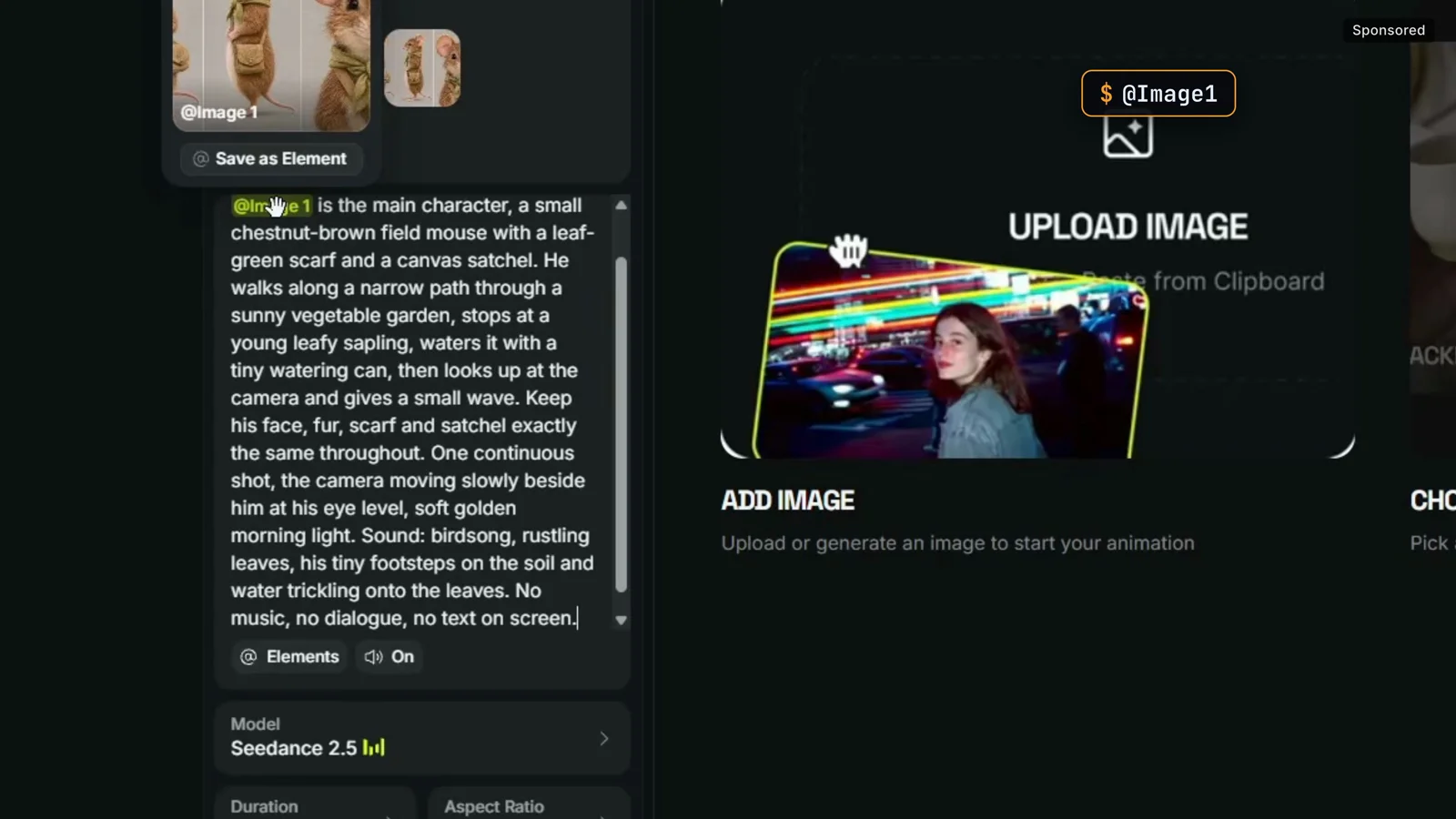
The prompt tells the model who is in the video, what happens, how the camera moves and what we hear. Moss is a little gardener, so he walks through his garden and waters a young tree.
Then the settings:
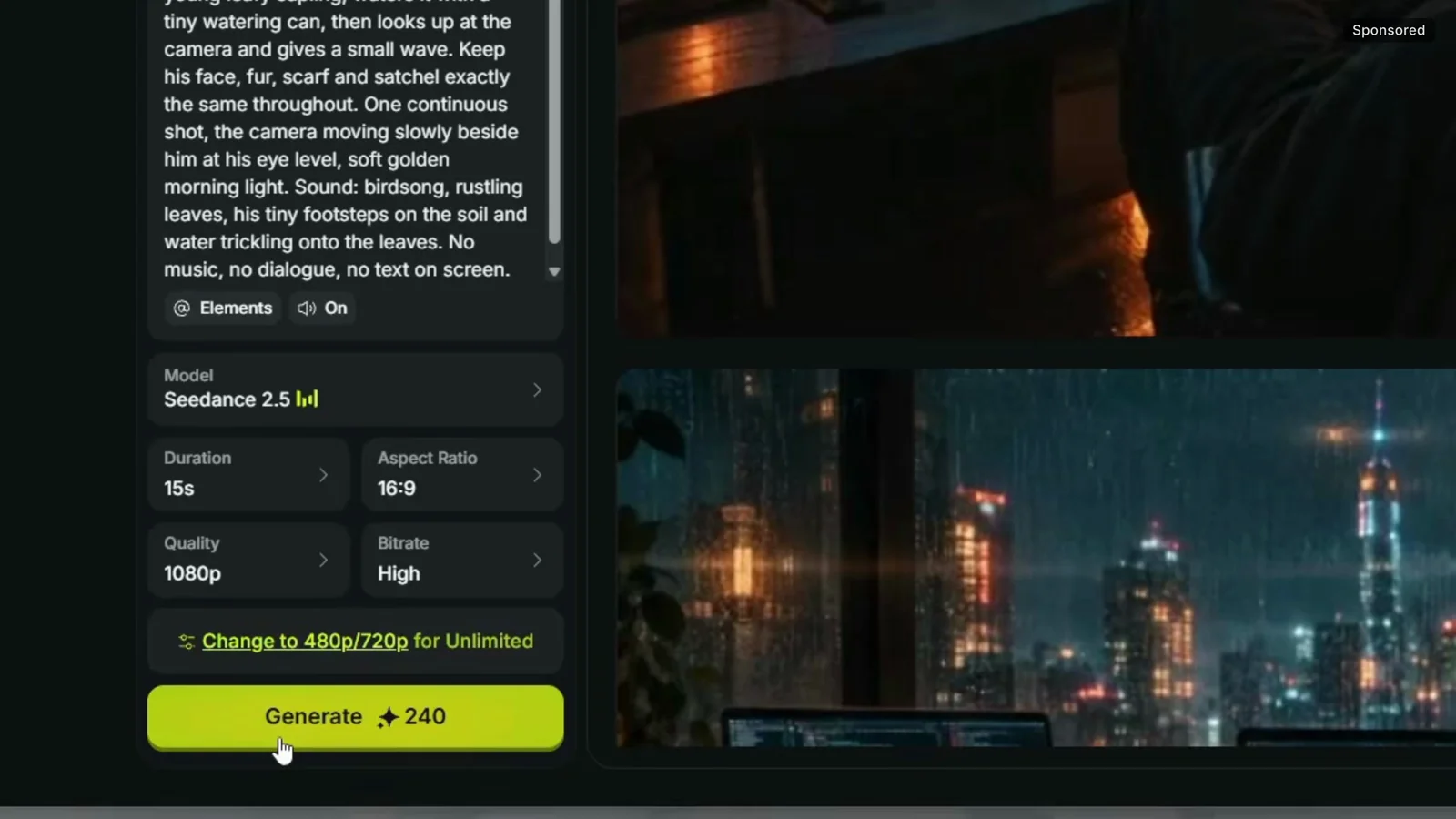
- Duration: 15 seconds (it goes up to 30).
- Aspect ratio: 16:9.
- Quality: it started on 720p. I switched to 1080p, which looks sharper and costs more credits. The cost on the button updates as you change it: 240 credits for this 15-second 1080p clip.
What should you check in the result?
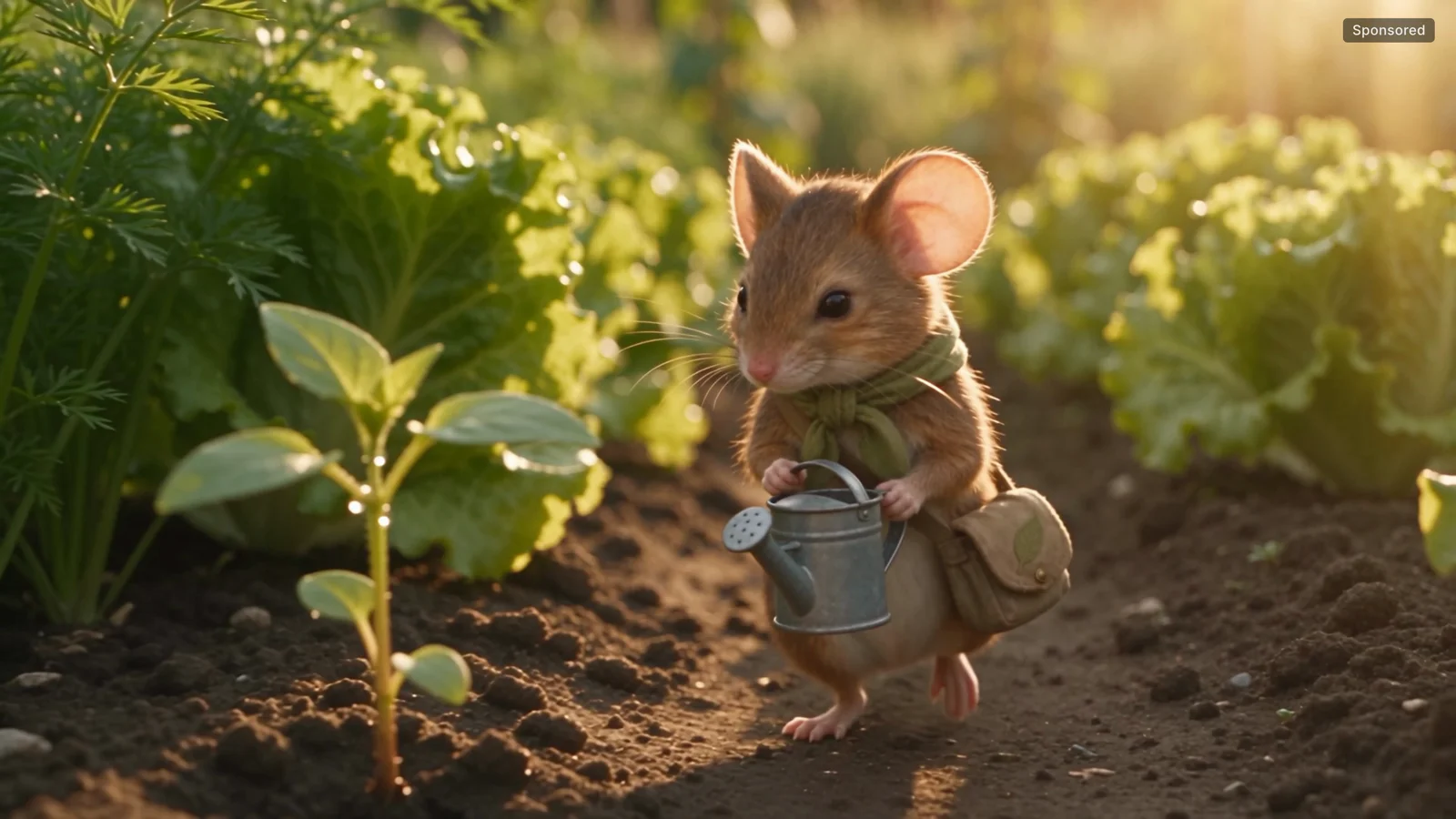
To me it looks exactly like the character sheet. Check three things:
- The face
- The outfit
- The movement
If you like it, download it. If not, change the prompt and generate again.
Can you change the scene and keep him?
One quick tweak: same scene, only the time of day and the weather change. Dusk and light rain.
- Paste the adjusted prompt (below).
- Click the
@Image1reference again and make sure the character sheet is selected. - Generate.
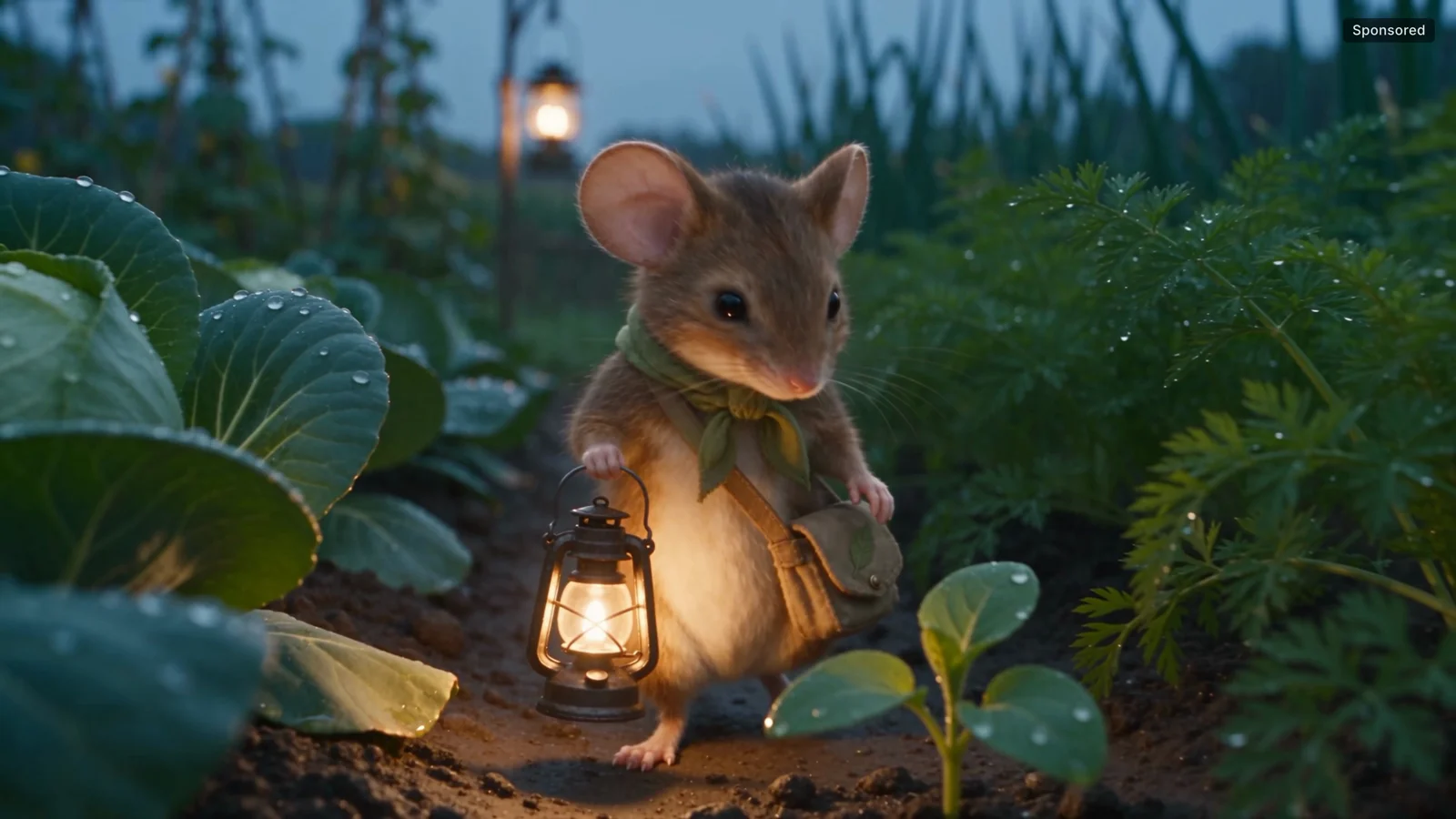
The lighting changed completely, and Moss still looks the same as in the first clip. A simple character sheet was enough for that consistency. This one is the clip going into PlanGentle.
How do you put him in a trending video?
The bonus, and the fastest way to a fun result: take a trending video from the community and put your character in it.
- Open Genjutsu from the nav bar.
- Under Community trending, sort by trending and pick a category. I used Pets.
- Pick a template and click Recreate. I took the coffee machine one.
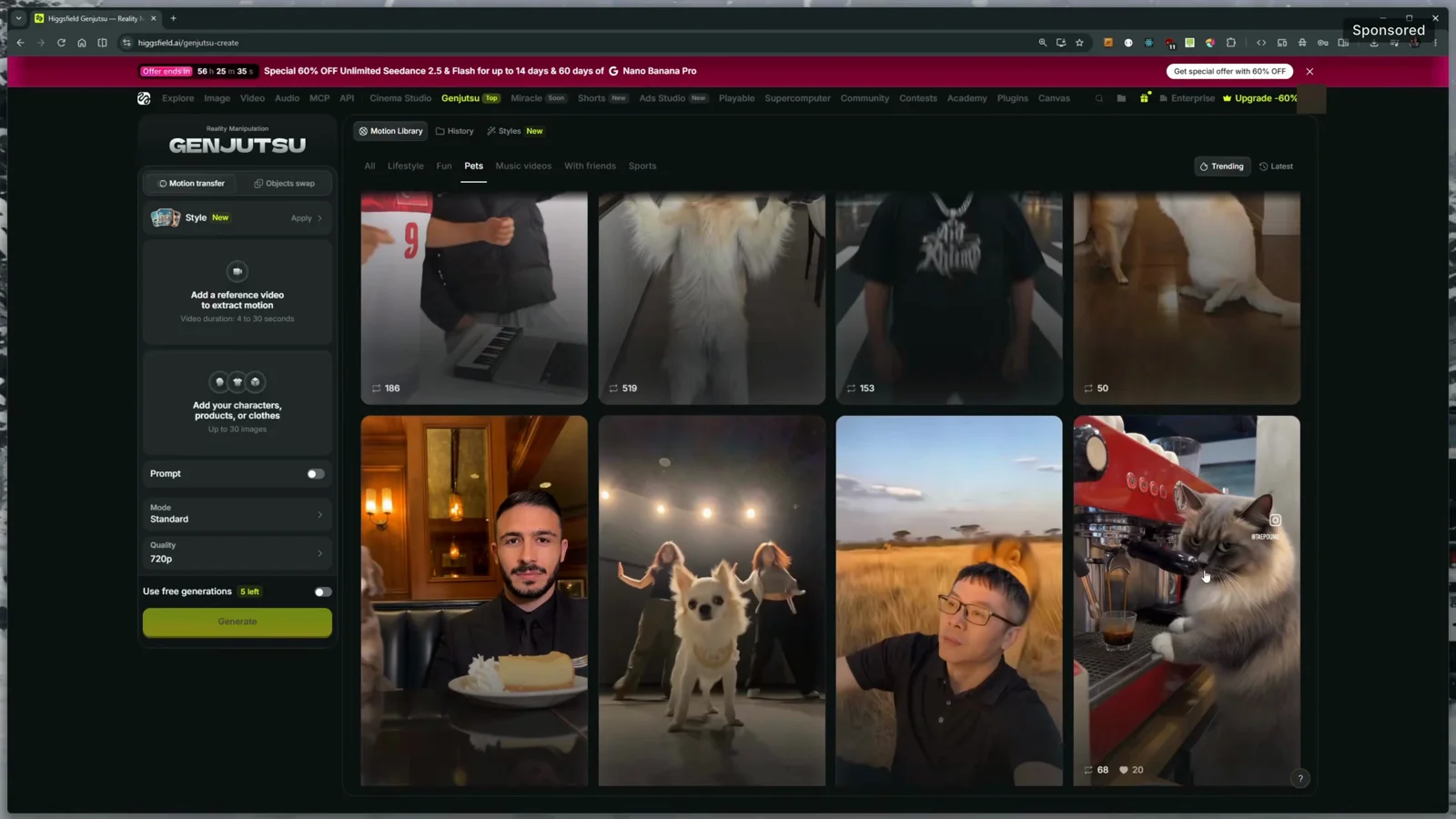
- Adjust the template’s images, or replace the whole prompt. I replaced it.
- Click Generations and pick the character sheet. It became
@Image 9in my account (the number depends on how many images you have). - Choose the mode (Lite or Standard) and the quality. I used 720p to make it faster.
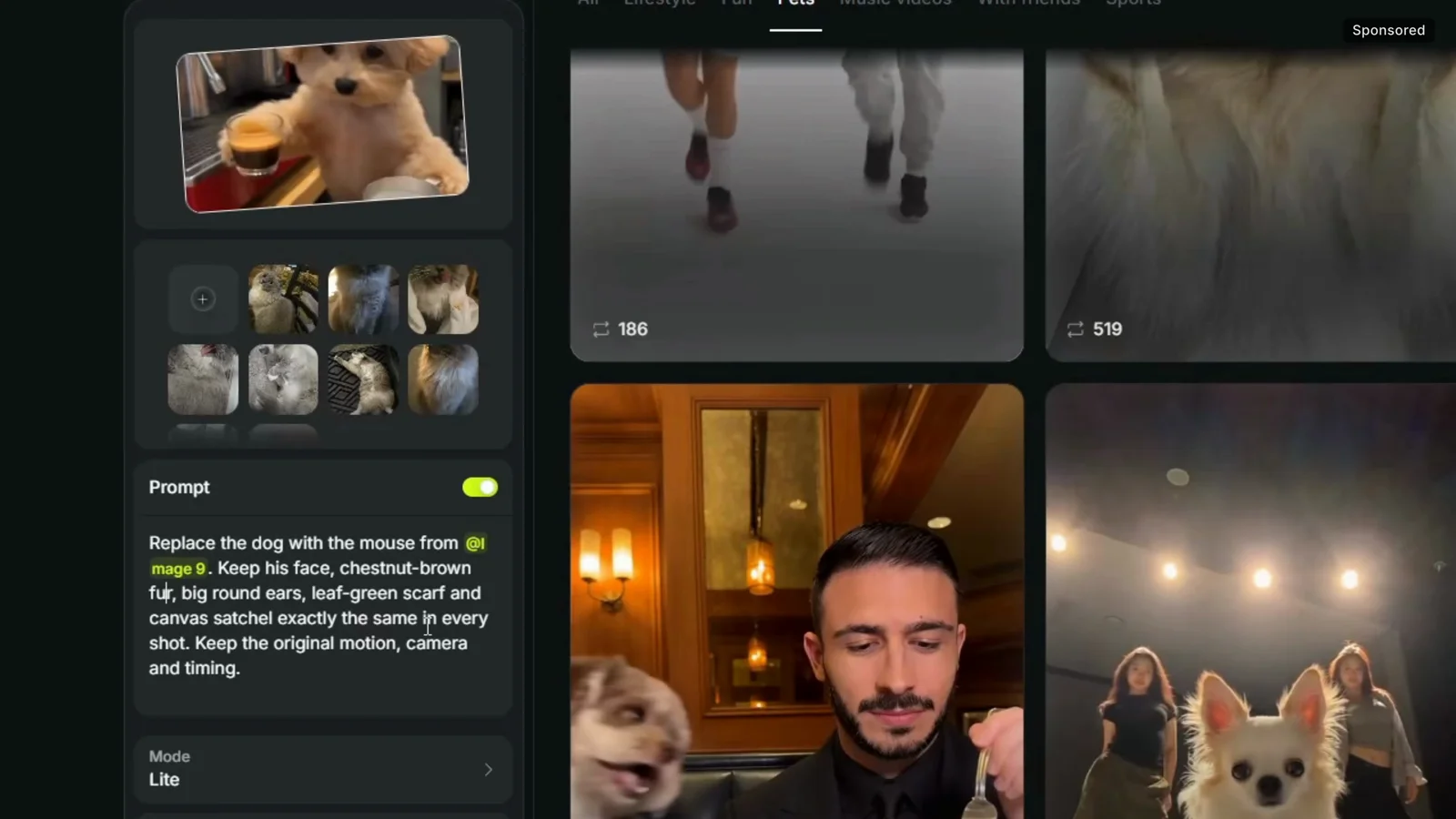
Genjutsu keeps the motion and the camera of the template and puts your character in it. Plus includes free Genjutsu generations, so mine cost no credits.
One thing that confused me: the template I clicked showed a cat, but that clip had already swapped the original video’s dog for the cat. My prompt replaces the original dog, which is why the split view shows a dog next to Moss.
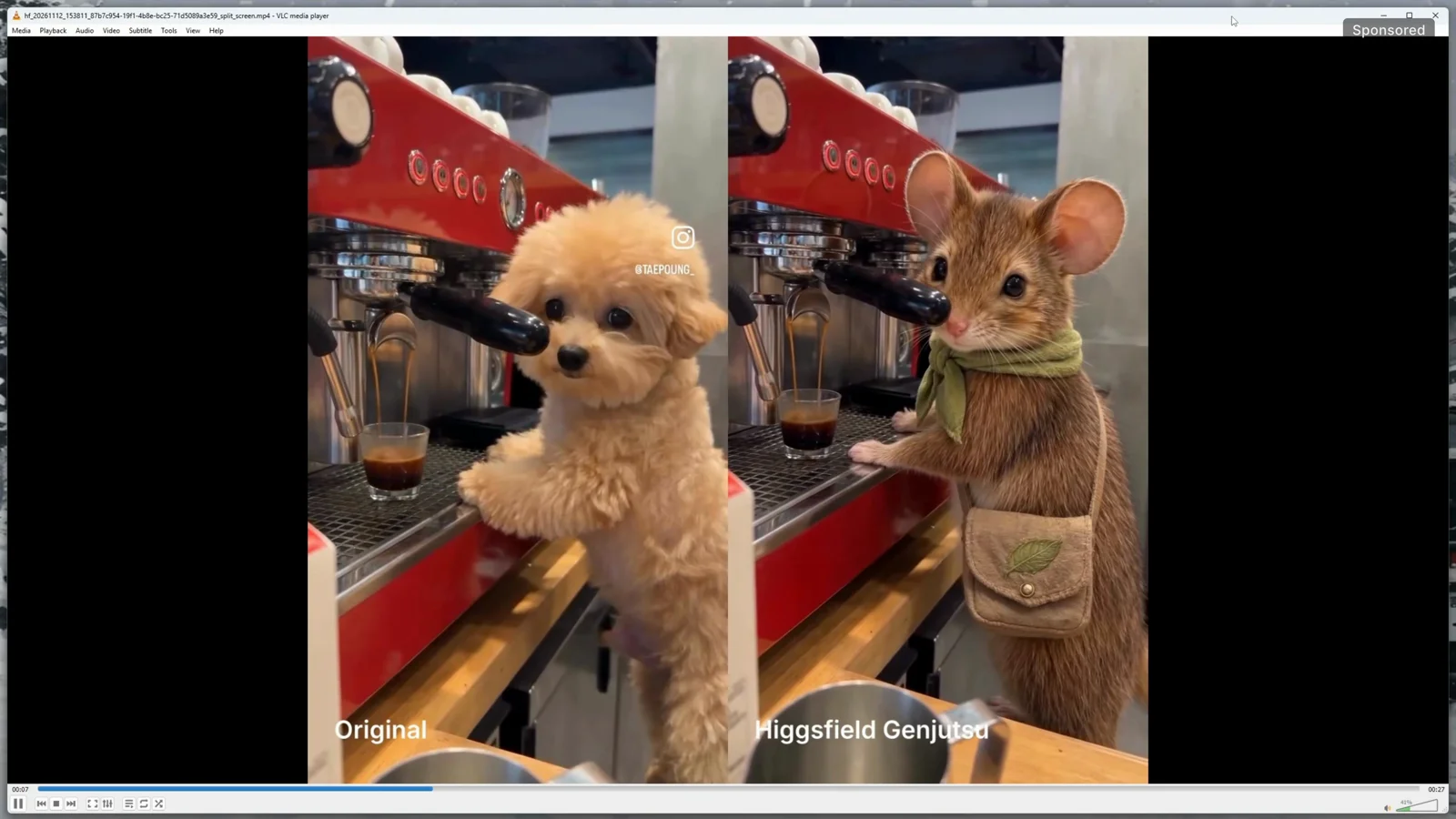
Honestly, this one blew me away. I didn’t expect it to come out that good.
Prompts for AI videos with the same character
Copy them, swap in your own character’s details, and keep the “exactly the same” line in every video prompt.
Character, GPT Image 2.6 Flare, 3:4 (05:07)
A realistic full-body 3D render of a small anthropomorphic field mouse standing upright on his hind legs. Chestnut-brown fur with a cream belly and muzzle, big round ears with soft pink insides, small dark eyes and a long thin pink tail. He wears a soft leaf-green scarf knotted at the neck and a small worn canvas satchel on a strap across his body, with a green leaf stitched on the flap. He stands naturally against a plain warm light-grey background, facing the camera, with a calm, friendly expression. Soft, even studio lighting, detailed fur texture, realistic proportions, sharp focus. No text.Character sheet, GPT Image 2.6 Sunburst, 16:9 (06:57)
Using the attached image as the reference, create a character sheet of the same character in three panels: a full-body front view, a full-body side view and a close-up of the face. Keep the same fur colours, ears, eyes, scarf, satchel and proportions in every panel. Plain warm light-grey background, even studio lighting, realistic 3D render. No text or labels.Video, Seedance 2.5, 15 s, 16:9 (08:02)
@Image1 is the main character, a small chestnut-brown field mouse with a leaf-green scarf and a canvas satchel. He walks along a narrow path through a sunny vegetable garden, stops at a young leafy sapling, waters it with a tiny watering can, then looks up at the camera and gives a small wave. Keep his face, fur, scarf and satchel exactly the same throughout. One continuous shot, the camera moving slowly beside him at his eye level, soft golden morning light. Sound: birdsong, rustling leaves, his tiny footsteps on the soil and water trickling onto the leaves. No music, no dialogue, no text on screen.Scene tweak, dusk and light rain, Seedance 2.5 (10:12)
@Image1 is the main character, a small chestnut-brown field mouse with a leaf-green scarf and a canvas satchel. He walks along a narrow path through a vegetable garden at dusk, in light rain, stops at a young leafy sapling, waters it with a tiny watering can, then looks up at the camera and gives a small wave. Keep his face, fur, scarf and satchel exactly the same throughout. One continuous shot, the camera moving slowly beside him at his eye level, soft blue dusk light with warm lantern glow. Sound: gentle rain on the leaves, a few crickets, his tiny footsteps on the soil and water trickling onto the leaves. No music, no dialogue, no text on screen.Genjutsu, Recreate with your character (12:01)
Replace the dog with the mouse from @Image 9. Keep his face, chestnut-brown fur, big round ears, leaf-green scarf and canvas satchel exactly the same in every shot. Keep the original motion, camera and timing.Gotchas
- Seedance 2.5 needs Plus. It isn’t on Free or Starter.
- Link the reference. Pasting
@Image1as text isn’t enough. Click it and pick the character sheet, and check it again after you paste a new prompt. - Quality costs credits. 1080p looked sharper but showed 240 credits for 15 seconds. Watch the number on the Generate button before you click.
- Skip the sheet and you lose the character. The sheet is what kept Moss the same through a full lighting and weather change.
- Genjutsu templates can be remixes. The thumbnail may show a different animal than the original clip your prompt replaces.
Is it good enough for my app?
My real question was whether I could use this for PlanGentle. Moss came out right on the first try, and so did the character sheet. Then I changed the whole scene to dusk and rain, and he still looked the same. That was the part I was worried about, and one simple character sheet was enough. The Genjutsu clip I really didn’t see coming.
Before this, Moss was one picture on my landing page. Now he has his own videos, and the rainy one is going straight into PlanGentle.
If you want to try it, sign up through my link. As a new user you get up to 50% off your first purchase. Start with Plus and use the first week of unlimited Nano Banana 2 to experiment as much as you can. The Seedance 2.5 page on Higgsfield has the model details.
More from me on AI video and agents:
Your turn
What should Moss do in his next clip? Tell me on X @StefanRows, and watch the full walkthrough in the video above.
More posts
All AI Workflows