Enable Fingerprint Login with GPO on Windows Server 2016
 By Updated 1 min read

Today I show you how to Enable Fingerprint Login with GPO (on Windows Server 2016).By default, Biometrics is disabled in your Default Domain Policy. I will show you how to create a new GPO dedicated to enable Biometrics in your Domain.
Creating a new GPO and enabling Biometrics
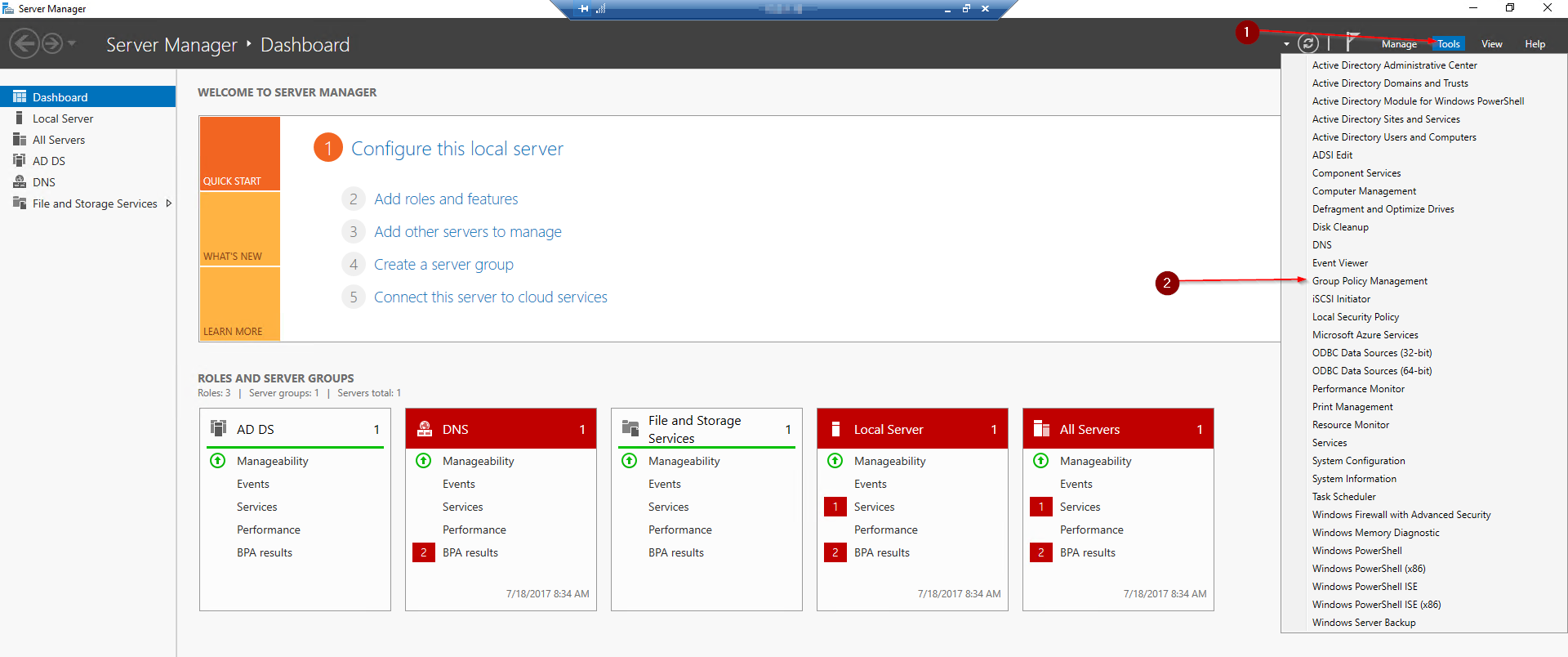
In your Server Manager Dashboard click on Tools and on Group Policy Management.
Now extend your Domain Root until you find the Folder Group Policy Objects.
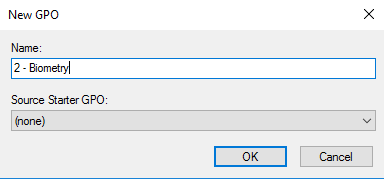
Right-click on an empty space in the right panel and click on New.

Give it a Name.
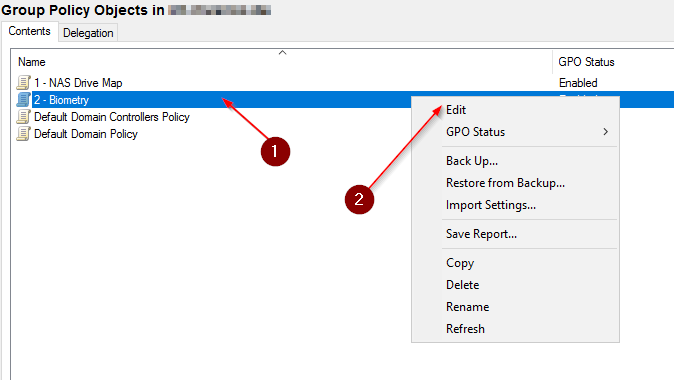
Now right click on it and click on Edit.
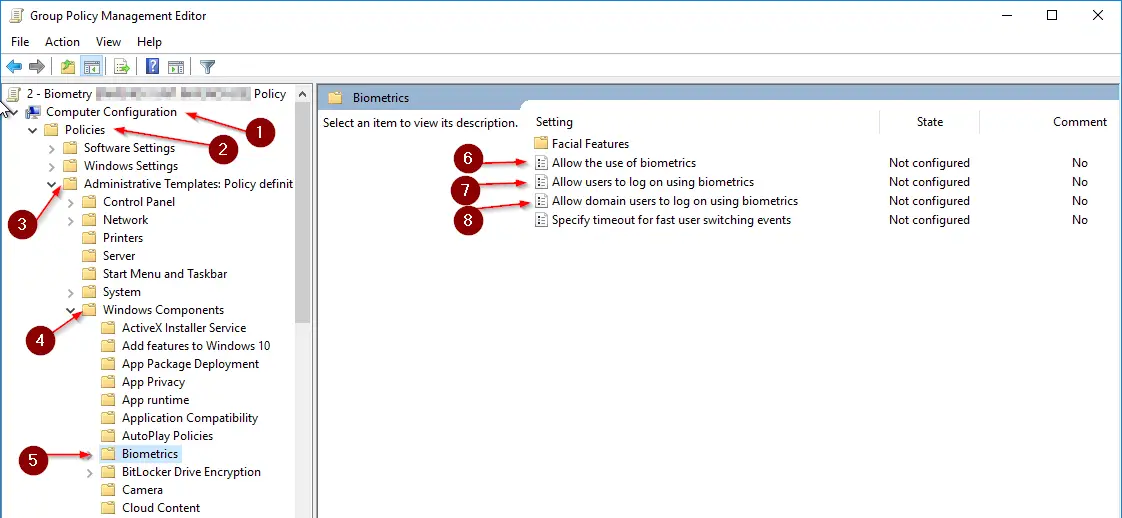
Navigate to Computer Configuration / Policies / Administrative Templates / Windows Components / Biometrics.
Change the settings of Number 6, 7 and 8 to Enabled.
Like so:
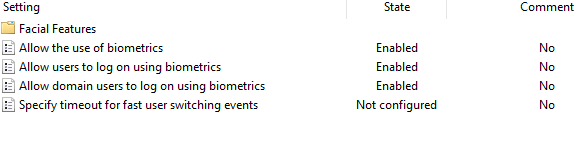
Now we also need to Turn on convenience PIN sign-in for the Fingerprint to work.
Navigate to Computer Configuration / Policies / Administrative Templates / System / Logon and Enable Turn on convenience PIN Sign-In
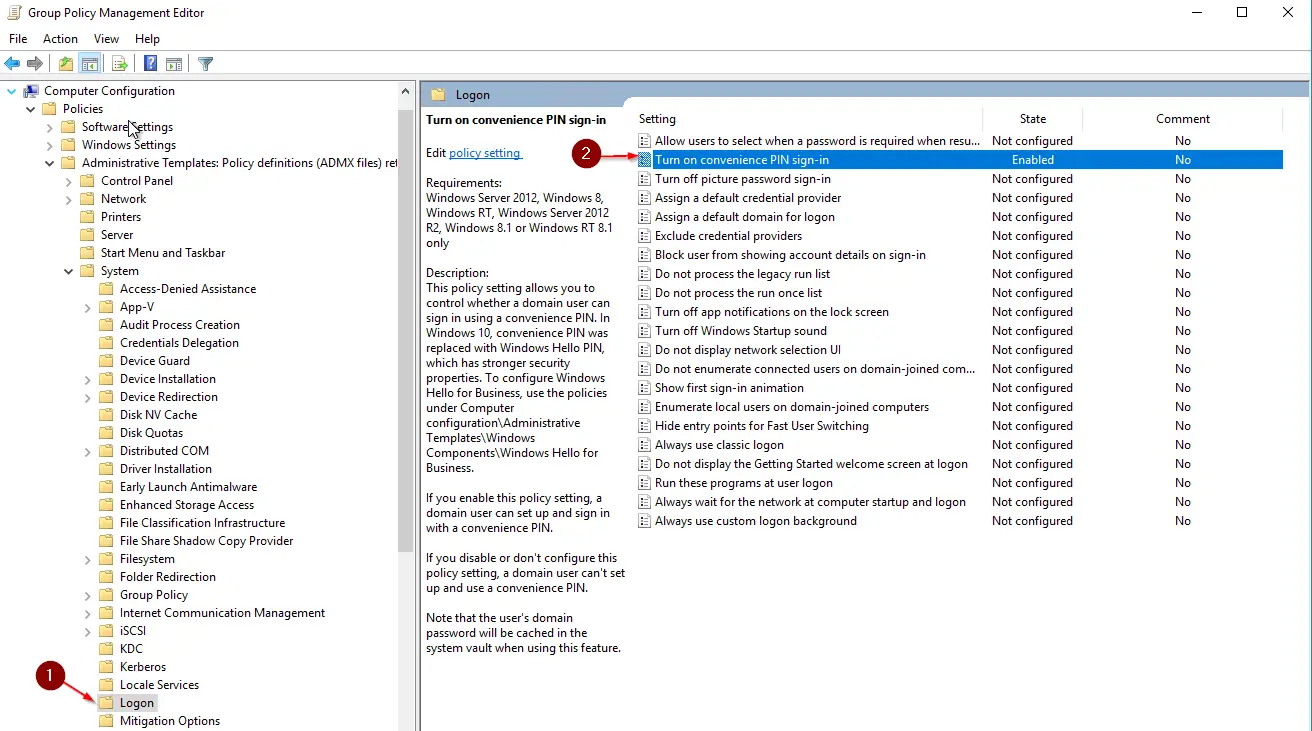
Now you just link the GPO to an Organizational Unit(OU) that you want it to be applied on. Keep in mind, this is a Computer Configuration, so the Client you want the GPO to be applied on, needs to sit in the OU you link the GPO to.
After that is done, on a client type:
gpupdate /forceAnd that’s it. You should now have enabled Login via Fingerprint. It is possible that you need to reboot your computer for it to work.
I hope this helps! And as always, if this tutorial was making your Sysadmin life easier, please consider to become a Patron and support me to be able to create more content for you.
Thanks!
8 thoughts on “Enable Fingerprint Login with GPO on Windows Server 2016”
Comments are closed. I keep the discussion here because the answers still help.
More posts
All SysAdmin

I tried with windows server 2019 but it does not work. No suggestions?
Tried this and it worked perfectly fine
not worked....
Thanks, between this and the regedit on the laptop to add
HKEY_LOCAL_MACHINE\SOFTWARE\Policies\Microsoft\Windows\System
AllowDomainPINLogon DWORD
1 = Enable
I was able to get the fingerprint scanner to work.
Great to hear, Victor!!
Didn't work, I followed exact steps
Did not work .. Followed Every step…
Thank you, great & simple explanation=)