Basic Pentesting 2 Walkthrough

me back, fellow hackers! I finally had time to play with another CTF. Back in March, I already wrote a walkthrough for the first part of the Basic Pentesting CTF and really enjoyed playing it. If you haven’t already, you should definitely do that first. They released the second part of it a while back, and I chose to do it as well, so here you can read my Basic Pentesting 2 Walkthrough, another awesome CTF that I highly recommend to beginners!

Over the past couple of months, my hacking skills got a bit rusty because I needed to work a lot with Amazon Web Services and general Firewall Security. This new CTF was a great refresher and sparked my interest again in doing more CTFs. But enough of this; let’s get started!

You can download the VM here. I used VirtualBox to import it, and it worked from scratch. I use ParrotSec for this tutorial.

Table of Contents

Networking

VirtualBox Host-Only Subnet: 192.168.56.0/24

ParrotSec OS IP: 192.168.56.102

BasicPentesting 2 IP: 192.168.56.101

Part 1 - Creating a Metasploit Workspace & Scanning with Nmap

I always like to start by creating a new Metasploit Workspace for a new project. So I keep everything I gather in that workspace and can access it at any time. First, I started Metasploit.

Terminalbash
msfconsole

And then created a new workspace named basicpentesting2.

Snippettext
workspace -a basicpentesting2
workspace basicpentesting2
Basic Pentesting 2 Walkthrough

After identifying my own host with the IP of 192.168.56.102, I run a Nmap simple ping scan to identify the Basic Pentesting 2 VM.

Terminalbash
nmap -sP 192.168.56.0/24
Basic Pentesting 2 Walkthrough

The Basic Pentesting 2 VM has the IP 192.168.56.102.

Part 2 - Running advances Nmap scans

Next, I will run another Nmap scan, this time discovering open ports, services, service versions and OS versions using the -A and -sV options.

Snippettext
db_nmap -sV -A 192.168.56.101

I use the db_nmap command to directly store the scan in my Metasploit basicpentesting2 workspace/database.

As expected, the scan reveals a couple of useful information.

Basic Pentesting 2 Walkthrough

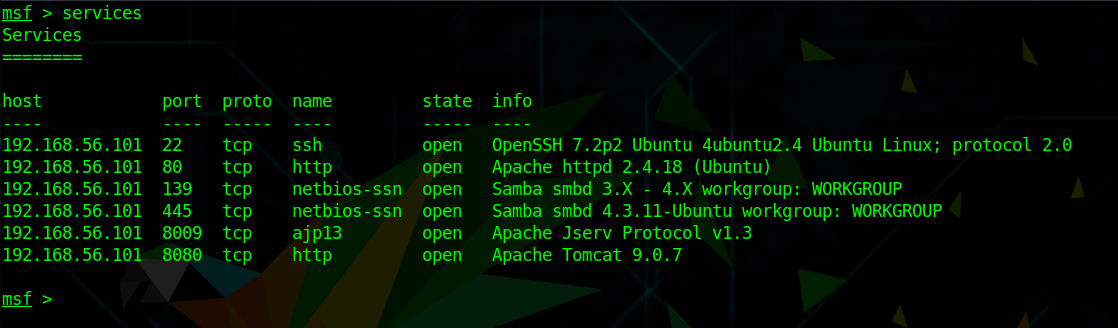
We see open ports, services, and service numbers. Although we were not able to find out the OS version with this scan (yet). Because we used the db_nmap command within Metasploit, we can now easily get an overview of open services by running:

Snippettext
services
Basic Pentesting 2 Walkthrough

This is one of the reasons why I really like to stay within the Metasploit framework.

Part 3 - Checking the Website

Naturally, because Apache is running on Port 80 and Tomcat on 8080, I will open a browser first and try to access any kind of website.

http://192.168.56.101/ just reveals a Undergoing maintenance page. Nothing useful here.

Basic Pentesting 2 Walkthrough

If I access that same link with the port 8080 on the end, I reach the Apache Tomcat Configuration Page -> http://192.168.56.101:8080

Basic Pentesting 2 Walkthrough

This might or might not be useful, if I try to access the Manager App or Server Status, I get prompted for a password.

Part 4 - Scanning for directories using Dirb

The quickest way to find any available web directories is by using either Dirb or Dirbuster. On my first try I actually used Dirbuster (it has a graphical GUI), but for this purpose, Dirb works just as well and much faster.

Running Dirb against http://192.168.56.101 reveals the /development page. Let’s check that out.

Terminalbash
dirb http://192.168.56.101/
Basic Pentesting 2 Walkthrough

Opening this URL in a Web Browser reveals two pages:

Basic Pentesting 2 Walkthrough

The first one reveals:

2018-04-23: I’ve been messing with that struts stuff, and it’s pretty cool! I think it might be neat to host that on this server too. Haven’t made any real web apps yet, but I have tried that example you get to show off how it works (and it’s the REST version of the example!). Oh, and right now I’m using version 2.5.12 because other versions were giving me trouble. -K 2018-04-22: SMB has been configured. -K 2018-04-21: I got Apache set up. Will put in our content later. -J

And the second one:

For J: I’ve been auditing the contents of /etc/shadow to make sure we don’t have any weak credentials, and I was able to crack your hash really easily. You know our password policy, so please follow it? Change that password ASAP. -K

This reveals a couple of things:

There are two users, J and K. J apparently has a weak password. We also learned that J is using an older version of Apache. J is probably our entry point in the network. Now we need to find out what their username is.

Part 5 - Enumerating Usernames

In my first attempt, I kind of took a long way around. I searched for “Male first names starting with J and Male first names starting with K”. I created a username list with Cewl from those names. With this method, I was able to find both usernames, but later I found out that there is an easier way to achieve this.

I used the tool enum4linux for user enumeration. It is pre-installed on Kali but not on Parrot. If you are on Parrot, you can easily install it like this:

Snippettext
sudo -i
cd /opt/
git clone https://github.com/portcullislabs/enum4linux
Basic Pentesting 2 Walkthrough
Terminalbash
cd /enum4linux/
chmod +x enum4linux.pl
Basic Pentesting 2 Walkthrough

Once installed, I enumerated SSH users with the command below. On Kali, you just need to type enum4linux 192.168.56.101.

Terminalbash
./enum4linux.pl 192.168.56.101

This is using the - a option per default, meaning it’s running all its basic checks. If you scroll through the results you can find a couple of interesting things. If you just want to enumerate for usernames, you could use the -U option.

The important information although is the following:

Basic Pentesting 2 Walkthrough

Turns out, J is jan and K is kay. Great, now I got their usernames.

Part 6 - Bruteforcing SSH

As I have learned earlier from the message from K to J, Jan is using a weak password. Weak password sounds like rockyou.txt could give me a hit.

If you haven’t used the rockyou.txt wordlist before, you have to first unzip it.

Snippettext
sudo gzip -d /usr/share/wordlists/rockyou.txt.gz

Now you could go about this multiple ways. You could use the Metasploit module auxiliary/scanner/ssh/ssh_login, or, you can use the probably much faster tool: Hydra.

I decided to use Hydra:

Terminalbash
hydra -l jan -P /usr/share/wordlists/rockyou.txt ssh://192.168.56.101
Basic Pentesting 2 Walkthrough

Hydra only needs a couple of minutes to find Jan’s password:

Basic Pentesting 2 Walkthrough

Login: jan Password: armando

Part 7 - Sniffing around via SSH

Now I should be able to login via ssh using Jan’s credentials:

Terminalbash
ssh jan@192.168.56.101
Basic Pentesting 2 Walkthrough

And I am in! Turns out they run Ubuntu 16.04.4 (4.4.0-119). Before googling exploits for that specific version, I dig around a bit.

Terminalbash
ls -la 

Doesn’t reveal anything.

Basic Pentesting 2 Walkthrough

Whereas:

Terminalbash
ls /home/

Reveals not only Jan’s but also  Kay’s user folder. A further dig into Kay’s folder reveals a file called pass.bak.

Basic Pentesting 2 Walkthrough

Although, as I expected, I am not able to open it.

Basic Pentesting 2 Walkthrough

But there is something else of interest. A hidden folder called .ssh. In there, I locate an id_rsa file. This sounds interesting; probably an ssh key.

Terminalbash
cd /home/kay/.ssh
cat id_rsa

Bingo! Kay’s encrypted Private Key!

Basic Pentesting 2 Walkthrough

Part 8 - Bruteforcing the Private Key

Next, I copied the contents of the id_rsa file in another file on my local machine.

Terminalbash
sudo nano privatekey

Paste the text in this file.

Before starting to Bruteforce the file with John The Ripper, I needed to convert the file so that John can read it:

Snippettext
ssh2john privatekey > privatekeyjohn
Basic Pentesting 2 Walkthrough

Next, I run John against the file:

Terminalbash
john privatekeyjohn
Basic Pentesting 2 Walkthrough

After about 45 Minutes, John found the Password: beeswax

Basic Pentesting 2 Walkthrough

Part 9 - Grabbing some Loot

Alright, time to try the new-found credentials:

Terminalbash
ssh -i sshkey kay@192.168.56.101

And sure enough, I am in! This should enable me to read the pass.bak file that I have seen earlier in Kay’s home folder. After that, I copied that password and logged in with root.

Snippettext
cat pass.bak
sudo -i
Basic Pentesting 2 Walkthrough

Bingo! Jackpot. A quick ls revealed the flag.txt we were searching for:

Basic Pentesting 2 Walkthrough

This was fun!

Conclusion

This concludes the Basic Pentesting 2 Walkthrough. It was extremely educational to dig around and use that Private Key to gain access to Kay’s account. I had a great time solving this, and it didn’t take me too long. The hardest part for me was figuring out what to do with the Private Key file. I am already looking forward to the next Basic Pentesting CTF!

whoami

Stefan

Stefan founded Ceos3c in 2016 and has spent a decade teaching cybersecurity, Linux, and web development through hands-on tutorials. He builds and ships real products while sharing his journey: ProofSwap.me, XPMetric.com, and EasyEarningsTracker.com. Find him on YouTube (youtube.com/stefanrows) and X (@StefanRows).

whoami

Stefan

Stefan founded Ceos3c in 2016 and has spent a decade teaching cybersecurity, Linux, and web development through hands-on tutorials. He builds and ships real products while sharing his journey: ProofSwap.me, XPMetric.com, and EasyEarningsTracker.com. Find him on YouTube (youtube.com/stefanrows) and X (@StefanRows).