Install Python – Complete Step-by-Step Tutorial

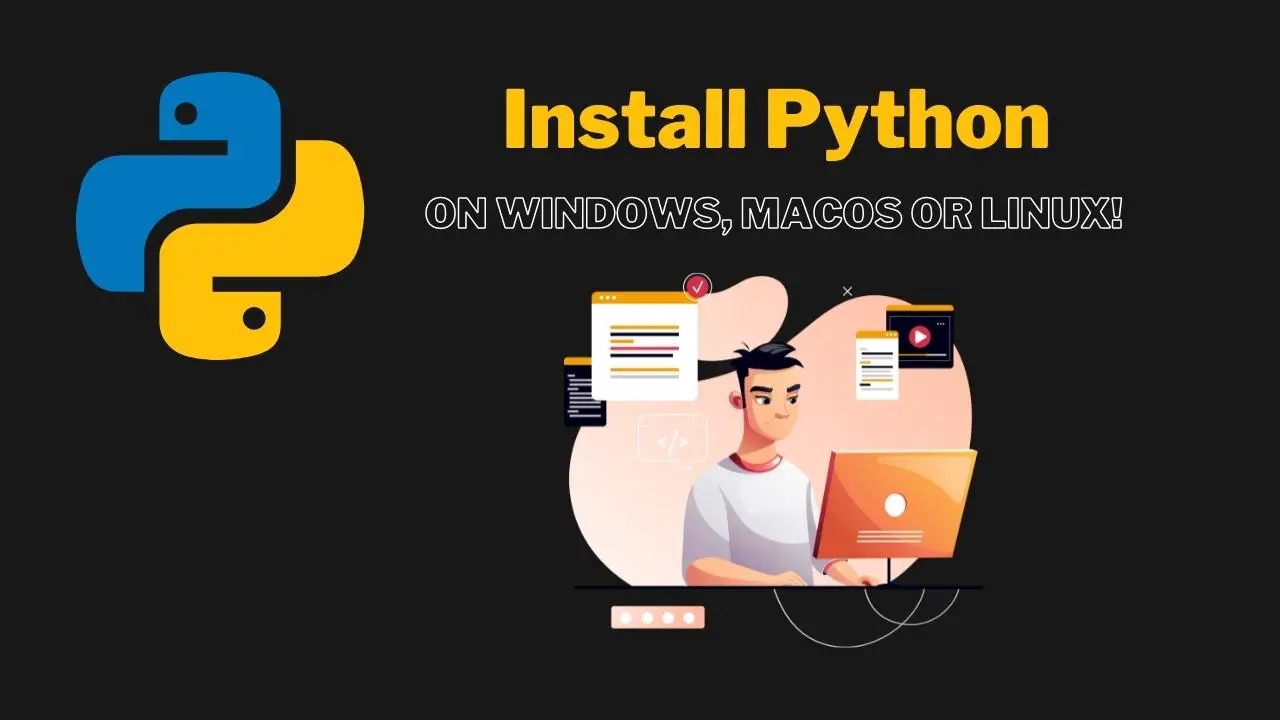
Install Python Featured Image

In this tutorial, you will learn how to install Python and how to set up your computer for the use of the Python programming language. We will cover the installation on Windows, macOS, and Linux!

Table of Contents

Install Python on Windows

To install Python on Windows 10 or Windows 11, follow the steps below.

Download Python

First, we need to download Python from the Python Website:

Download Python for Windows

Install Python

After you have downloaded Python, open the installer. Make sure that you tick the box next to “Add python.exe to PATH,” otherwise you will run into problems later. Click on Install Now to start the installation:

Install Python on Windows

After the installation is done, make sure to click on “Disable path length limit” to finish the installation. This avoids running into path length problems later on.

Disable Path Length Limit Python

Verify the Installation

This should be all for now. To test if Python was installed successfully, press the Windows Key and search for Python. Then open the Python interpreter:

Opening Python on Windows

Feel free to print your first line of Python code to make sure everything works. Type the following code into the Python interpreter and press enter:

pythonpython
print("Hello, World!")

Output:

First Python Line of Code

This concludes the installation on Windows.

Install Python on macOS

Installing Python on macOS is as easy as it is on Windows. There are two ways on how you can install Python on macOS, using the official installer from the Python website, or installing Python via terminal. You can choose which one you want to use. If you are a beginner, we recommend using the official installer!

Install Python using the Official Installer

Head over to the official Python Website and click on Download Python:

Install Python on macos

After you have downloaded the file, double-click it to start the installer. Leave everything on default and follow through with the installation.

Python is now installed on your macOS system.

Install Python using the Terminal

First, we need to install Homebrew. Open your macOS terminal and type:

Terminalbash
$ /bin/bash -c "$(curl -fsSL https://raw.githubusercontent.com/Homebrew/install/master/install.sh)"

Set up the PATH Variable

Next, we need to set up the PATH variable so we are able to use Python from our terminal:

Terminalbash
export PATH="/usr/local/opt/python/libexec/bin:$PATH"

Install Python on macOS using the Terminal

Finally, to install Python on macOS, we have to run the following:

Terminalbash
brew install python

Verify the Installation

To verify if the installation was working, type the following to check the Python version:

Terminalbash
python3 --version

Install Python on Linux (Debian-Based)

Installing Python on Linux is very simple. These instructions are for Debian-Based systems like Ubuntu 20.XX or higher.

Install Python

To install Python on Linux, we first make sure that our APT repository is up to date:

Terminalbash
sudo apt update

After this, we can install Python using the following command:

Terminalbash
sudo apt install python3.8

Linux Python Version Confusion

It can get a bit confusing with all the different Linux distributions out there, all supporting different versions of Python. While Ubuntu 18.XX and below usually come with Python3.6 support, and Ubuntu 20.XX and above come with Python3.8 support.

This can vary greatly from distribution to distribution. In case the above instructions do not work for you, simply Google: “Install Python3 on {insertYourDistribution+VersionHere}”. That should set you up!

Next Steps

Now that you have Python set up and ready to go, you can continue with the next step: setting up a Code Editor for Python!

Continue ➡️

whoami

Stefan

Stefan founded Ceos3c in 2016 and has spent a decade teaching cybersecurity, Linux, and web development through hands-on tutorials. He builds and ships real products while sharing his journey: ProofSwap.me, XPMetric.com, and EasyEarningsTracker.com. Find him on YouTube (youtube.com/stefanrows) and X (@StefanRows).

whoami

Stefan

Stefan founded Ceos3c in 2016 and has spent a decade teaching cybersecurity, Linux, and web development through hands-on tutorials. He builds and ships real products while sharing his journey: ProofSwap.me, XPMetric.com, and EasyEarningsTracker.com. Find him on YouTube (youtube.com/stefanrows) and X (@StefanRows).