How to Delete FOG Images Correctly
 By Updated 1 min read
If you have followed my other FOG Tutorials, like the one to create a Windows 10 Image with FOG, you probably will come to a point sooner or later where you want to delete obsolete Images to save Disk Space on your FOG Server. Just deleting them in FOG doesn’t remove them from the Server. A little Manual Labor is required to Delete FOG Image (s). I quickly run you through.
Table of Contents
Step 1 - Log in to your Fog Server
Log in to your FOG Server and log in as root.
sudo -iNavigate to the folder where your images are located, per default here:
cd /images/Now check your images. Make sure you don’t delete a production image!
ls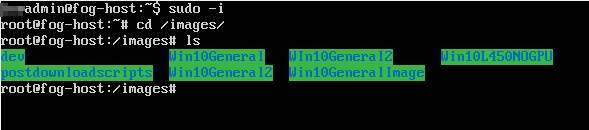
Step 2 - Delete FOG Server Image
Time to delete the image we want to be removed. Simply run:
rm -rf NameOfTheImageYouWantDeleted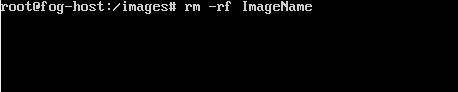
This will free up your Disk Space. You can double-check by checking your FOG Server Dashboard. It doesn’t get much easier than that.
Stefan
Stefan founded Ceos3c in 2016 and has spent a decade teaching cybersecurity, Linux, and web development through hands-on tutorials. He builds and ships real products while sharing his journey: ProofSwap.me, XPMetric.com, and EasyEarningsTracker.com. Find him on YouTube (youtube.com/stefanrows) and X (@StefanRows).
- ProofSwap Testimonial swaps for indie makers
- xpmetric Cookieless web analytics
- EasyEarningsTracker Income tracking for creators
More posts
All Linux